Summarize this blog post with:
Quick Summary
Zoho CRM automation uses triggers, conditions, and actions to handle repetitive sales tasks. You can automatically assign leads, create follow-up tasks, update deal records, and send notifications when specific events occur. These 10 Zoho CRM automation examples cover lead management, deal follow-ups, renewals, and e-commerce data syncing, with plan requirements and SMS/WhatsApp integration options.
According to data, 92% of businesses believe CRM systems are critical to meet their revenue goals. Zoho CRM automation is a set of rules that performs routine CRM tasks when predefined events or conditions occur. Instead of asking sales reps to update every record, assign every lead, or remember every follow-up, you configure the CRM to handle these actions automatically.
For example, when a prospect submits a demo request, Zoho CRM can create a lead, assign it to a sales rep, and schedule a follow-up task. The team can then focus on the conversation rather than the administrative work.
Zoho CRM automation generally follows three steps:
- Trigger: An event starts the workflow, such as a new lead being created, a deal changing stages, or a date arriving.
- Condition: Zoho checks whether the record meets your criteria, such as a lead having a particular source, score, or deal value.
- Action: The CRM performs the configured task, such as assigning an owner, creating a task, updating a field, or sending a notification.
Even with Zoho CRM automation in place, many sales teams still face lingering challenges. Sales cycles may be longer than expected, follow-ups might not always happen on time, and this can delay decision-making.
In this blog, you’ll learn how to automate tasks in Zoho CRM with 10 ready-to-use workflows, the plan each one needs, and how to add SMS and WhatsApp follow-ups to the mix.
How to Automate Tasks in Zoho CRM With Workflow Rules
Before creating a workflow, identify a repetitive task that has a clear starting event and a measurable outcome. Automating a poorly defined process can create more incorrect records or unnecessary notifications.
Follow these steps to build a basic workflow:
- Choose the module: Open the relevant module, such as Leads, Contacts, Deals, or Tasks.
- Create a workflow rule: Navigate to Setup and locate Workflow Rules under Automation. The exact menu labels may vary by interface.
- Select the trigger: Choose when the rule should run, such as when a record is created, edited, or updated to meet specified criteria.
- Define conditions: Specify which records qualify for the workflow.
- Configure actions: Add tasks, field updates, email notifications, or other supported actions.
- Set timing if needed: Configure scheduled actions when an action must occur after a defined interval or at a specific time.
- Test before activating: Use sample records to confirm that the rule runs only when expected.
10 Zoho CRM Workflow Automation Examples to Set Up
The following Zoho CRM automation examples cover common sales operations, from capturing new leads to managing renewals. Treat the conditions and timing as starting points, then adapt them to your sales process.
Plan note: Workflow rules are available in Zoho CRM's Free and paid editions, with limits on the Free plan. The plan recommendations below identify the likely minimum edition for the standard configuration described. Advanced integrations, custom functions, external messaging, and specific action limits may require additional capabilities or subscriptions. Verify your organization's current edition and limits before implementation.
1. Automatically Assign New Leads
Problem: Leads sit unassigned when multiple forms, campaigns, or sales channels generate inquiries.
- Trigger: A new lead is created.
- Condition: Lead source is a demo request, and the territory is India.
- Action: Assign the lead to the India sales team and create a follow-up task.
- Zoho feature: Assignment Rules and Workflow Rules.
- Plan: Standard or higher is a practical starting point for rule-based sales assignment. Free has more limited automation capabilities.
Setup tip: Create separate assignment criteria for territories, product lines, or company sizes. Define a fallback owner for leads that do not match any rule.
2. Score Leads Based on Buying Signals
Problem: Sales reps spend time on leads that show little interest while high-intent prospects wait for a response.
- Trigger: A lead is created or its relevant fields are updated.
- Condition: The lead matches your qualification criteria, such as company size, job role, source, or engagement.
- Action: Apply scoring criteria and prioritize leads that meet your qualification threshold.
- Zoho feature: Scoring Rules, combined with workflow rules where appropriate.
- Plan: Standard or higher for basic scoring rules; higher editions provide increased scoring capacity and additional scoring options.
Setup tip: Score factors that reflect your actual buying process. A demo request from a target account may deserve more weight than a general newsletter signup. Avoid treating a high score as a guarantee that a lead is sales-ready.
3. Create a Follow-Up Task After a Demo
Problem: Reps finish a demo but forget to send the recap or agree on next steps.
- Trigger: A deal moves to the Demo Completed stage.
- Condition: The deal remains open.
- Action: Create a task for the deal owner to send a recap and confirm the next step within one business day.
- Zoho feature: Workflow Rules and task creation.
- Plan: Standard or higher is a practical starting point for this workflow.
Setup tip: Use a task template with fields for the customer's main requirement, unresolved questions, and the agreed next action. This gives the rep a clear checklist instead of a generic reminder.
4. Alert Managers About High-Value Deals
Problem: Managers learn about large opportunities too late to help with pricing, approvals, or negotiations.
- Trigger: A deal is created or updated.
- Condition: Deal value exceeds your defined threshold and the deal is still open.
- Action: Notify the sales manager and create a review task.
- Zoho feature: Workflow Rules and email or in-app notifications, depending on the configured action.
- Plan: Standard or higher for the basic workflow.
Setup tip: Set different thresholds for different sales teams or deal types. Avoid notifying managers about every record update; trigger alerts only when their involvement can change the outcome.
5. Follow Up on Stalled Deals
Problem: Opportunities remain in the same pipeline stage because nobody follows up after the last meeting or proposal.
- Trigger: A scheduled action runs after a defined period, or a deal meets a time-based workflow condition.
- Condition: The deal remains open and has not progressed beyond the agreed follow-up window.
- Action: Create a task for the deal owner and notify the manager if the deal remains stalled.
- Setup tip: Define separate follow-up windows for different stages. A proposal awaiting procurement may need a different cadence from a lead that has not replied after the first call.
- Zoho feature: Workflow Rules, scheduled actions, and date fields.
- Plan: Standard or higher, subject to the workflow's scheduling and action limits.
Setup tip: Include the deal value, purchased product, contract start date, customer contact, and key commitments in the handover process. Verify required fields before triggering the handover.
6. Send an Internal Alert When a Deal Is Won
Problem: Account management or onboarding teams do not receive timely notice when a deal closes.
- Trigger: A deal's stage changes to Closed Won.
- Condition: The deal has an assigned account owner and contains the required customer details.
- Action: Notify the onboarding or account management team and create an implementation handover task.
- Zoho feature: Workflow Rules and task or notification actions.
- Plan: Standard or higher for the basic workflow.
Setup tip: Include the deal value, purchased product, contract start date, customer contact, and key commitments in the handover process. Verify required fields before triggering the handover.
7. Re-Engage Leads Who Have Gone Quiet
Problem: Prospects stop responding after an initial conversation, and reps do not have a consistent process for re-engagement.
- Trigger: A lead reaches a defined follow-up date or a scheduled action becomes due.
- Condition: The lead remains open and has no recorded next meeting or recent engagement.
- Action: Create a re-engagement task or send an approved email. For SMS or WhatsApp, use a connected messaging solution.
- Zoho feature: Workflow Rules and scheduled actions; Cadences may suit structured follow-up sequences.
- Plan: Standard or higher for the basic workflow. Cadences are available from Standard upward, subject to edition limits.
Setup tip: Stop the sequence when the lead replies, books a meeting, opts out, or becomes disqualified. Do not keep sending messages after the prospect has taken action.
8. Automate Proposal and Quote Follow-Ups
Problem: Sales reps send proposals but lack a consistent reminder process for prospects who have not responded.
- Trigger: A deal enters the Proposal Sent stage or a proposal date is recorded.
- Condition: The deal remains open, and no response or next meeting has been recorded.
- Action: Create a follow-up task after the agreed interval and notify the owner if the deal remains open.
- Zoho feature: Workflow Rules and scheduled actions.
- Plan: Standard or higher for the basic task workflow. If you also need inventory-linked products, quote generation, or CPQ, review Professional or higher.
Setup tip: Set the follow-up interval based on your typical buying cycle. For complex B2B deals, the next step may be a scheduled review rather than an automated message.
9. Automate Renewal Reminders
Problem: Teams miss renewal dates because contract information is scattered across spreadsheets, emails, and CRM records.
- Trigger: A contract or subscription renewal date approaches.
- Condition: The account is active, and the renewal has not already been completed.
- Action: Create a renewal task for the account owner and notify the relevant team before the renewal date.
- Zoho feature: Workflow Rules, date fields, and scheduled actions. You may need a custom module or integration to store contract records.
- Plan: Standard or higher for a basic date-based reminder; the exact requirement depends on your data model and automation limits.
Setup tip: Start with a 60-day reminder, followed by a 30-day reminder if the renewal remains open. For subscription businesses, connect your billing or subscription platform where needed rather than relying on manually maintained dates.
10. Sync Magento Orders Into Zoho CRM
Problem: Sales and account teams cannot see a customer's purchase history because order information remains in the e-commerce platform.
- Trigger: A customer places an order or an order status changes in Magento.
- Condition: The order matches your sync criteria, such as a valid customer email and an eligible order status.
- Action: Create or update the corresponding customer record and sync order details into the appropriate CRM module.
- Zoho feature: A Magento integration extension or a connected integration workflow.
- Plan: The CRM edition alone does not determine the full integration requirement. Check the extension's compatibility, pricing, and any API or middleware requirements.
Setup tip: Map customer identifiers, order IDs, order value, products, payment status, and fulfillment status. Use a unique order ID to prevent duplicate records when the integration retries an event.
Important: Zoho CRM workflows can coordinate CRM actions, but they do not automatically provide every external integration. Confirm which app, extension, API, or middleware is responsible for passing data between systems.
Which Plan Do You Need for Zoho CRM Sales Automation?
Zoho CRM offers Free, Standard, Professional, Enterprise, and Ultimate editions. The best plan depends on the actions your workflows need to perform, not simply on the number of workflows you intend to create.
Zoho's current feature documentation lists workflow rules across all editions, while Cadences begin at Standard and Blueprint is available from Professional. Individual action limits and advanced capabilities vary by edition. Review the official edition comparison and workflow configuration details before purchasing or upgrading.
Pricing note: Zoho pricing differs by country, billing frequency, and applicable taxes. Use the official Zoho CRM pricing page for the current quote in your region.
How to Automate SMS and WhatsApp in Zoho CRM With HelloSend
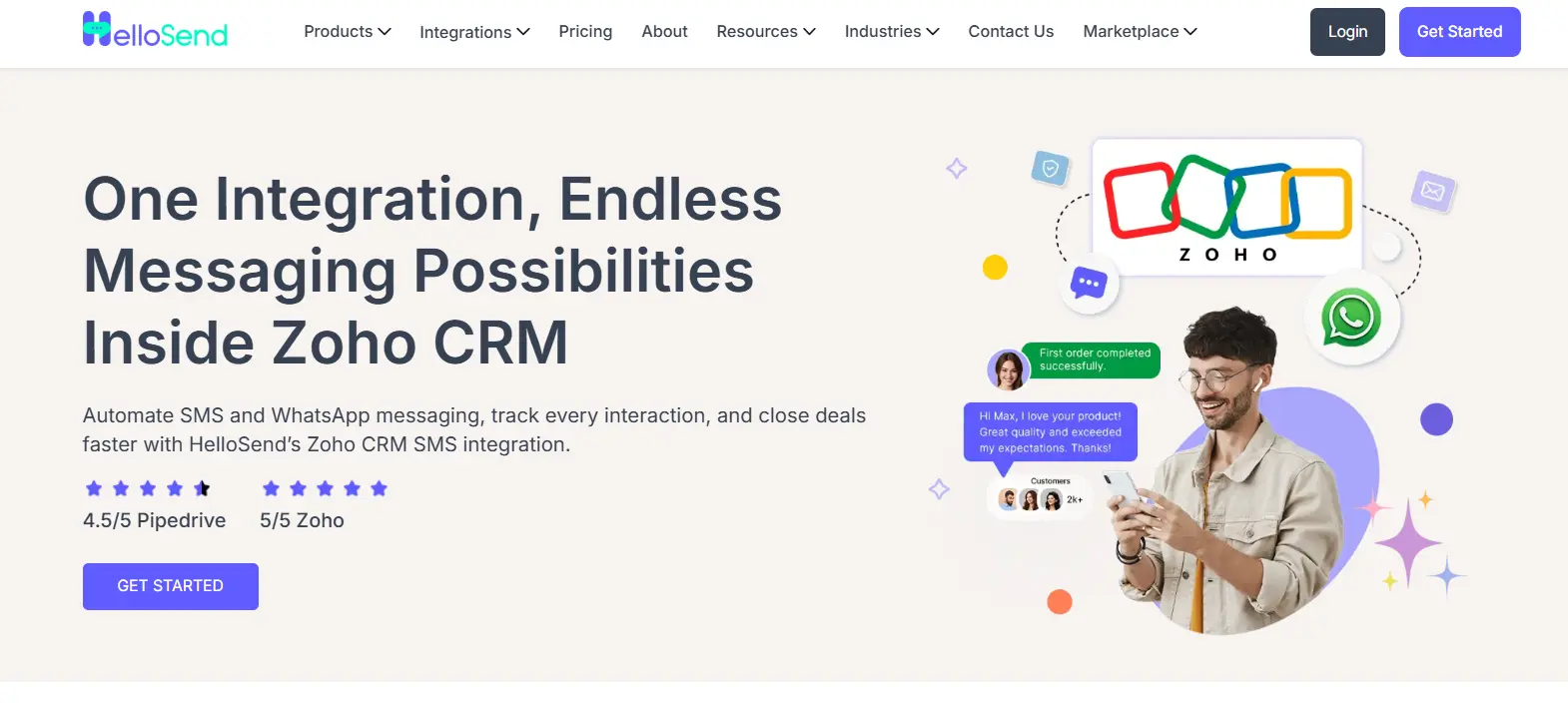
Zoho CRM can manage sales records, assign tasks, and trigger supported workflow actions. When a sales process also requires a text message or WhatsApp conversation, HelloSend adds a messaging layer to the CRM.
With the HelloSend integration, teams can send one-to-one messages from Lead, Contact, and Deal records, launch SMS or WhatsApp campaigns, use message templates, and keep communication records available for follow-up. Supported messaging channels depend on the connected provider and account configuration.
Learn more about the HelloSend and Zoho CRM integration.
Example 1: Send a Demo Confirmation by SMS
- Trigger: A lead books a demo.
- Condition: The lead has a valid phone number and has agreed to receive the message.
- Action: Send a confirmation SMS with the meeting date, time, and joining link.
- Tools: Zoho CRM workflow plus HelloSend and a connected SMS provider.
Example 2: Send a WhatsApp Follow-Up After a Demo
- Trigger: The demo is marked as completed.
- Condition: The deal is open and the prospect has an appropriate messaging opt-in or other valid basis for contact.
- Action: Send a relevant follow-up message or create a task for the sales rep to send it.
- Tools: Zoho CRM workflow plus HelloSend WhatsApp messaging.
Example 3: Remind a Prospect About an Upcoming Meeting
- Trigger: A meeting reminder becomes due.
- Condition: The meeting is still scheduled and has not been cancelled.
- Action: Send a reminder through the selected messaging channel, subject to provider and workflow capabilities.
- Tools: Zoho CRM, HelloSend, and a connected messaging service.
Top Features Of HelloSend for Zoho CRM Integration
HelloSend Pricing
HelloSend's Standard plan costs $75 per month with monthly billing or $60 per month when billed annually at $720 per year. Both options include three users and 10,000 messages per month. Additional users cost $25 per user per month.
The Standard plan includes SMS, WhatsApp, voice calling, CRM automations, campaigns, templates, and a unified inbox. Carrier or messaging-provider fees may apply separately.
You can also try HelloSend with a 3-day free trial without a credit card, which includes 250 messages across channels.
Visit the HelloSend pricing page for current plan details and subscription terms.

How to Automate Sales Processes Without Creating More Work
If you are wondering how to automate sales process with Zoho, automation only helps when it removes a genuine bottleneck. Use these practices to keep your Zoho sales automation useful and manageable.
Start With One Repetitive Task
Choose a process that frequently gets delayed, such as lead assignment, demo follow-ups, or renewal reminders. Establish a baseline before automating it so you can compare the results afterward.
Set Clear Conditions
Avoid broad rules that apply to every record. A follow-up workflow should check the lead status, owner, or next action where relevant. This reduces unnecessary tasks and messages.
Prevent Duplicate Actions
Review overlapping workflow rules before activating new ones. If multiple rules create the same task or send the same notification, consolidate them or add conditions that prevent duplicate execution.
Define When Automation Should Stop
A prospect who books a meeting should not keep receiving reminders to book one. Add appropriate stop conditions for replies, completed deals, cancellations, disqualification, and opt-outs.
Test With Sample Records
Test records that meet the conditions, records that do not meet them, and records that change status after the workflow begins. Confirm that the right owner receives the task and that messages are sent only when intended.
Review Workflow Results Regularly
Track practical outcomes such as time to first response, overdue tasks, follow-up completion, duplicate records, and renewal coverage. Review the results with the sales team and adjust rules when the process changes.
Common Zoho CRM Automation Mistakes to Avoid
- Automating before defining the process: Agree on lead qualification criteria and ownership rules before creating workflows.
- Sending messages without checking permissions: Maintain appropriate consent and opt-out records for SMS and WhatsApp outreach.
- Ignoring integration limits: Confirm which system owns each field and how failed syncs are handled.
- Creating too many notifications: Reserve alerts for actions that require attention.
- Using the wrong Zoho edition: Check feature availability and limits before building a workflow around a paid capability.
- Failing to monitor errors: Review failed actions, missing field values, and duplicate records after deployment.
Conclusion: Build a Sales Process Your Team Can Follow
Zoho CRM automation helps sales teams manage repetitive work through event-based rules, conditions, and actions. Start with lead assignment, follow-up tasks, stalled-deal alerts, and renewal reminders. Add scoring, structured sales processes, or external integrations when your team's requirements justify them.
When the workflow requires direct customer communication, HelloSend can connect SMS, WhatsApp, and calling capabilities to your Zoho CRM workspace. The combination lets teams coordinate CRM activities with customer conversations without treating every follow-up as a separate manual task.
FAQs
1. How does Zoho CRM automation work?
Zoho CRM automation uses triggers, conditions, and actions to handle routine tasks. For example, when a new lead meets specific criteria, a workflow can assign an owner, create a follow-up task, or send a notification.
2. Which Zoho CRM plan do I need for workflow automation?
Zoho CRM offers workflow rules across its free and paid editions, with different limits and capabilities. Standard is a starting point for more structured sales automation, while features such as Blueprint require Professional or higher. Check the current edition comparison before choosing a plan.
3. What is the difference between workflow rules and Blueprint in Zoho CRM?
Workflow rules automate actions when specified events or conditions occur, such as creating a task when a deal changes stage. Blueprint guides users through a defined process, including required steps and transition criteria. Use workflow rules for task automation and Blueprint when you need to enforce a consistent sales process.
4. Can Zoho CRM workflows send SMS or WhatsApp messages?
SMS and WhatsApp messaging may require a connected integration, such as HelloSend, and the appropriate configuration. Check whether your integration supports the required workflow triggers and message actions before setting up automated customer communications.
5. How do I automate renewals in Zoho CRM?
Store each contract's renewal date in a CRM record, then configure date-based workflow rules or scheduled actions to create reminders and assign tasks before expiry. For example, you could set reminders 60 and 30 days before renewal and stop them when the renewal is completed.