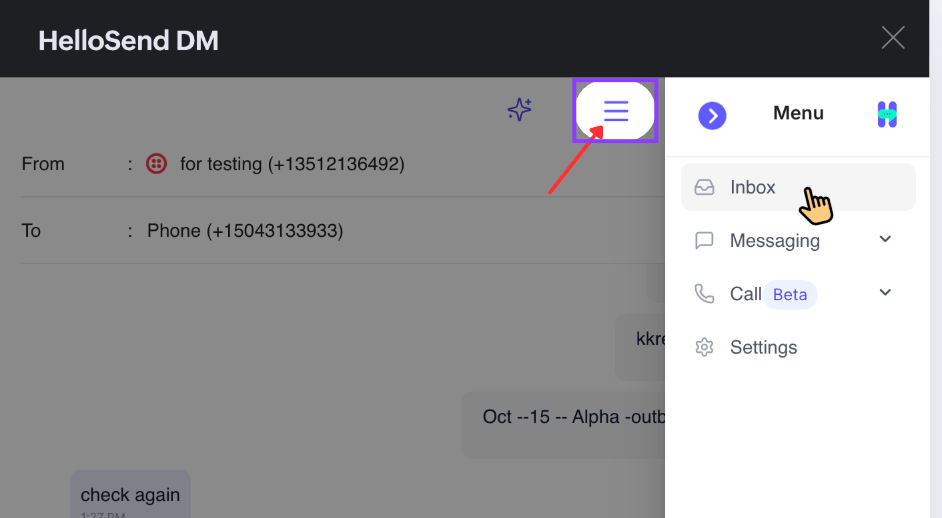
🧭 Accessing the Inbox
To open the HelloSend Inbox, simply navigate from your CRM:
- Navigate to HelloSend → Inbox from the left navigation panel.
- The Inbox loads with your most recent conversations at the top, based on filters like service, unread status, and flags.
✨ Key Capabilities of the Inbox
- Multi-channel support – SMS, WhatsApp, and calls in one place.
- Service-based views – separate Inboxes per number or provider.
- AI-assisted replies – smart, context-aware suggestions.
- Templates, voice notes, attachments & emojis – richer messaging.
- Notes, flags, and contact details – full CRM context at a glance.
⭐ Why the Inbox Matters
- A single workspace for all communication channels.
- Improves speed, accuracy, and personalization in replies.
- Keeps complete communication history inside your CRM.
- Scales effortlessly across brands, teams, and numbers.
💬 How Messages Appear in the Conversation Section
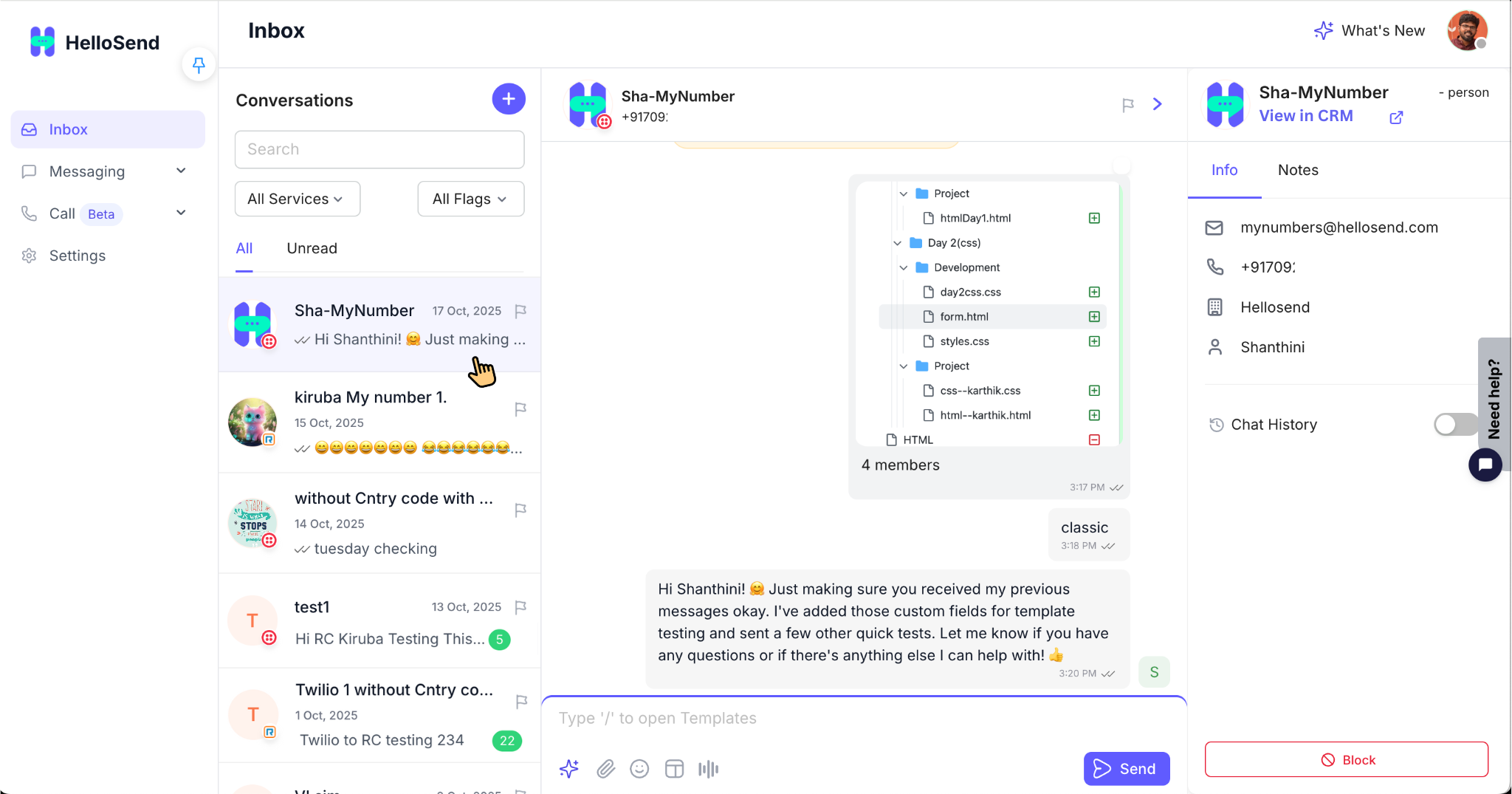
The Conversation list is designed to give you a quick snapshot of every interaction without opening each chat. Each row shows who the message is from, when it was last updated, and what the latest message contains.
👀 Key Elements in Each Conversation Row
- Profile Icon – shows the CRM photo or a first-letter avatar for the contact.
- Contact Name – pulled from your CRM (Lead/Contact/Person). If no name exists, the phone number is shown.
- Latest Message at the Top – the most recent conversation always appears first in the list for a real-time Inbox experience.
- Sent/Received Time – labels like “Just now”, “Yesterday”, or a full date show when the last message happened.
- Short Message Preview – a one-line preview showing text, emojis, attachment icons, voice icons, or WhatsApp template indicators.
- Unread Badge – a small colored badge (e.g., “12”) showing how many messages you haven’t opened yet.
- Flag Indicator – if you’ve applied a color flag, it appears on the right edge of the row.
⭐ Why This Matters
- Lets agents scan the Inbox visually and decide what to open first.
- Reduces time spent clicking into conversations just to see context.
- Shows who the contact is, what they said, and when they said it in one compact view.
➕ Start a New Conversation from Inbox (+ icon)
HelloSend Inbox allows you to manage SMS and WhatsApp conversations with full visibility—contact name, last message, unread count, and conversation history in one place.
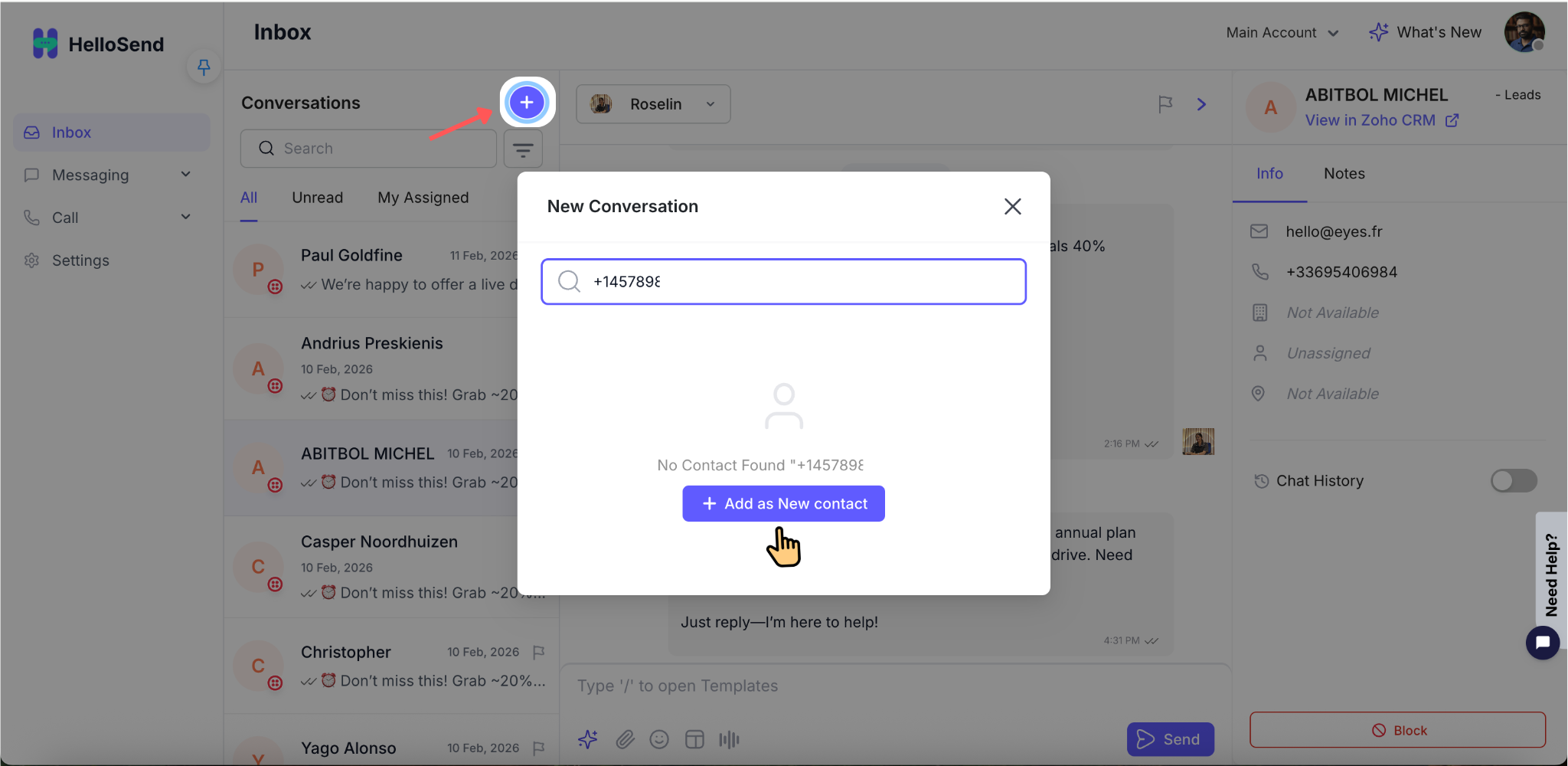
With the + icon available near the Inbox filters, you can instantly start a new conversation—even if the contact is not saved in your CRM.
✨ What This Feature Helps You Do
- Start conversations instantly without leaving the Inbox.
- Search and message existing CRM contacts quickly.
- Send messages to new phone numbers not yet saved in CRM.
- If no contact exists, the phone number will be shown until it gets saved or linked.
⚙️ How It Works
1. Click the + icon
Located near the Inbox filters, this opens a popup to start a new conversation.
2. Use the search box
You’ll see: “Start typing to search for existing contacts or add a new one.”
- Existing Contact: Type name/number → select contact → chat opens.
- New Number: Enter phone number → click Add / Use this number → chat opens.
3. Send your message
Send SMS/WhatsApp like usual—use templates, attachments, emojis, or notes.
4. New number behavior
If not linked to CRM, the conversation will display the phone number until saved later.
🚀 Why This Matters
- Eliminates dependency on CRM contact creation before messaging.
- Speeds up response time for inbound or urgent conversations.
- Enables agents to start conversations instantly from one place.
- Improves productivity and ensures no missed opportunities.
🔖 Saved Filters: How to Create, Manage, and Use Them in Your Messaging Inbox
Saved Filters are a powerful feature in the HelloSend Messaging Inbox that allow you to store, manage, and reuse specific filter configurations. Instead of manually selecting the same criteria—like specific tags, assignees, or conversation statuses—every time you log in, you can save that exact view and access it with a single click.
For teams managing high volumes of conversations, this feature significantly improves speed, productivity, and organization. Whether you need a quick view of "Unassigned Urgent Tickets" or "My Open Sales Conversations," Saved Filters help you cut through the noise and focus immediately on the messages that matter most to your workflow.
📡 Multi-Service Inbox in HelloSend
The Inbox is always just one click away from your CRM. Once HelloSend is installed, you can open it directly from the left navigation and start viewing or replying to messages right inside your CRM environment.
🧭 1. Accessing the Inbox
- Open your CRM and go to HelloSend.
- In the left sidebar, click Inbox.
- The main view shows your Conversations list on the left and the chat area on the right.
Tip: Pin the HelloSend menu in your CRM sidebar for quick access throughout the day.
🔗 2. Multi-Service Inbox in HelloSend
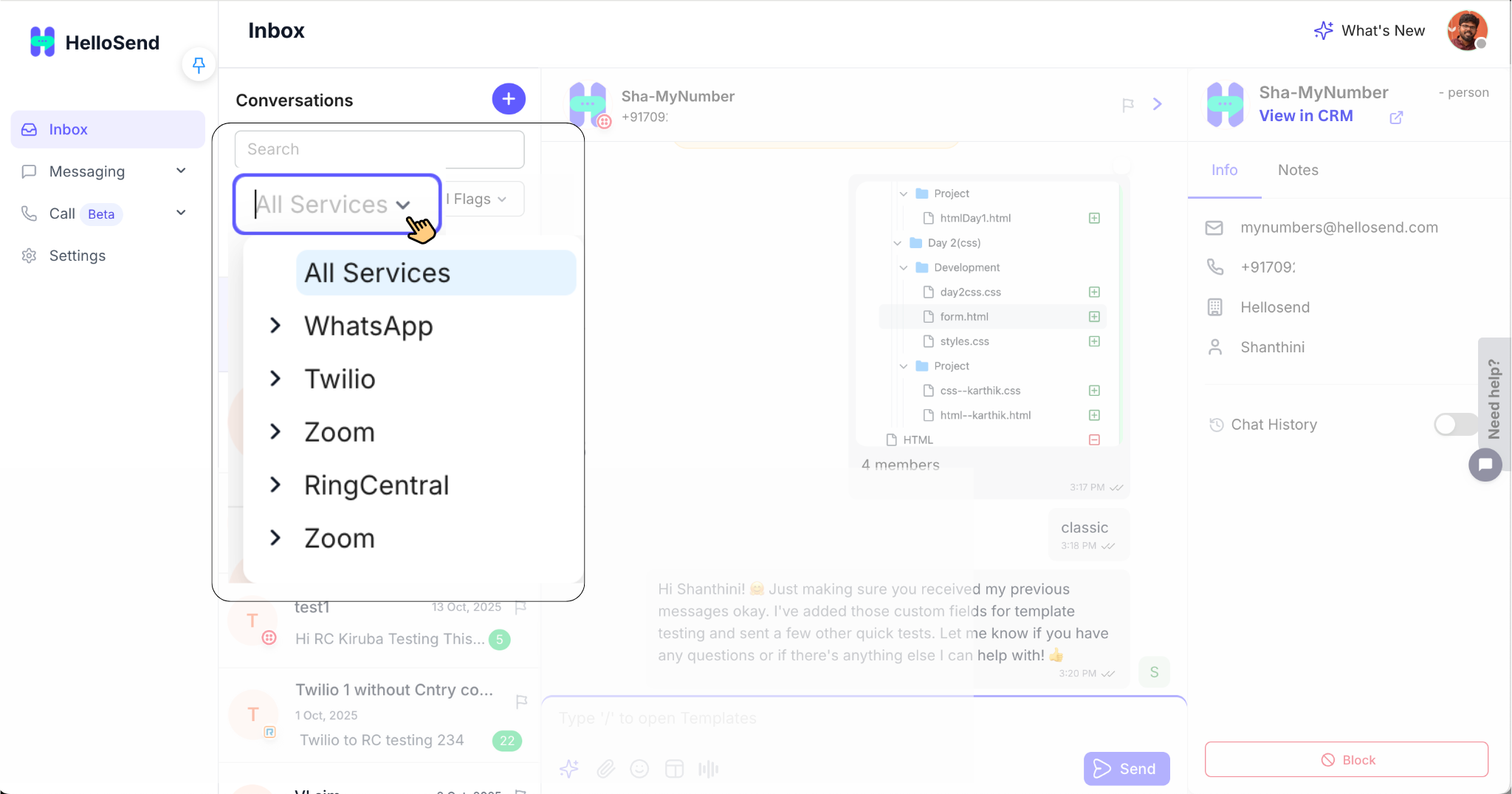
HelloSend allows you to connect multiple messaging services — such as Twilio SMS, RingCentral, Zoom Phone, WhatsApp numbers, or additional business phone lines. When more than one service is connected, your Inbox automatically becomes service-based, so each service can be viewed independently.
How to Use the Service Filter
- Go to HelloSend → Inbox from the sidebar.
- At the top of the conversation list, open the “All Services” dropdown.
- Choose a specific service, for example:
- Twilio phone numbers
- Twilio WhatsApp numbers
- RingCentral or Zoom Phone
- WhatsApp WABA numbers
- Personal WhatsApp (if enabled)
- The conversation list instantly updates to show only messages from that service.
- Select All Services again to see everything in a combined view.
⭐ Why Multi-Service Filtering Matters
- Keeps conversations from different brands, regions, or departments clearly separated.
- Helps agents focus on the services they own (e.g., support vs. sales numbers).
- Reduces confusion when multiple phone numbers or WhatsApp accounts are in use.
- Makes reporting and load balancing easier across services.
🔔 Viewing Unread and Active Conversations
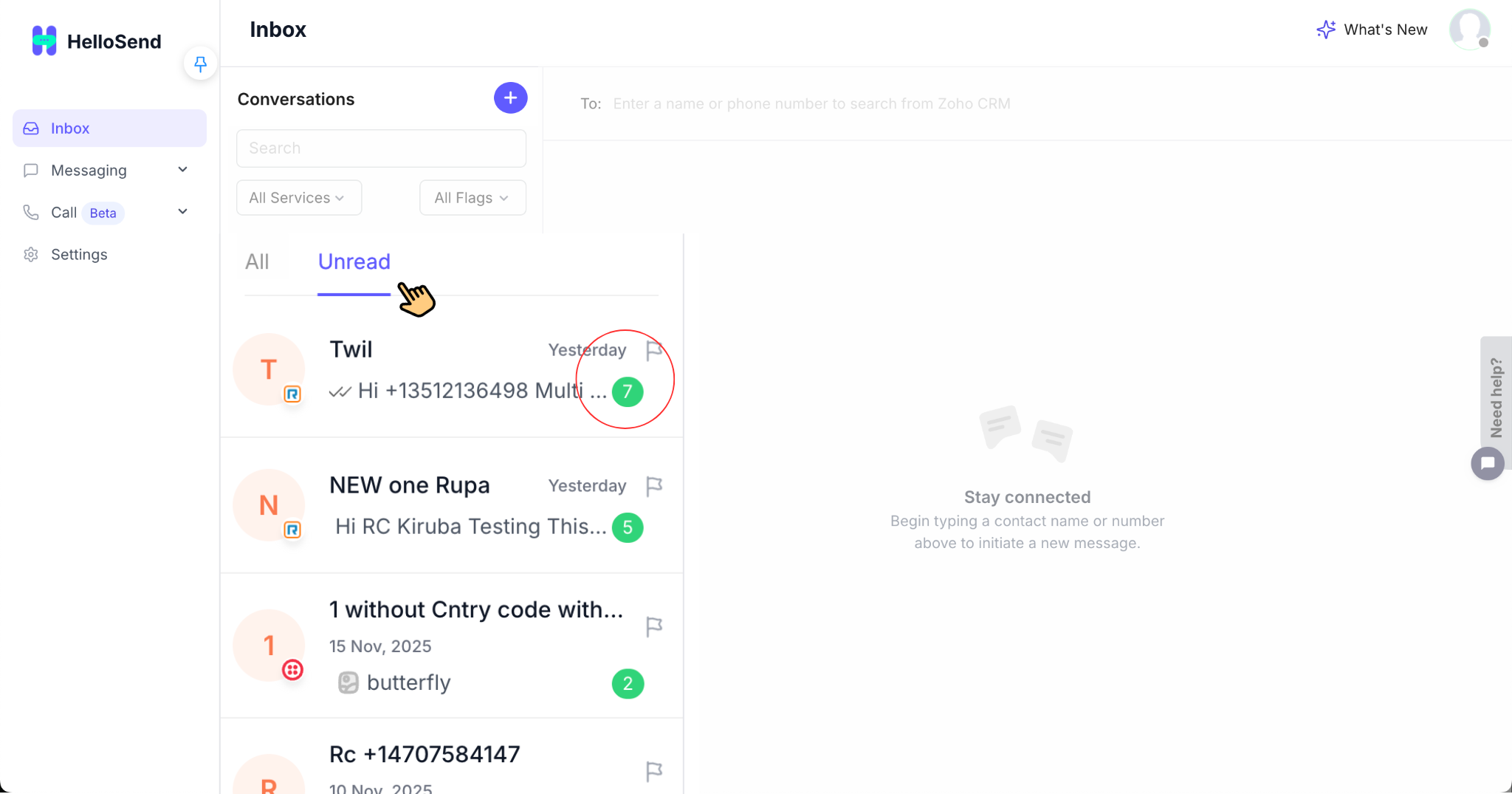
The HelloSend Inbox uses unread message badges to help your team quickly identify conversations that need attention. Each unread chat displays a small colored badge showing the number of messages that haven't been opened (for example, a green "12"). This minimal and clean indicator keeps the Inbox simple while still making unread items easy to spot.
🛠️ Admin-Controlled Unread Behavior (Organization-based vs User-based)
The way unread badges work in your Inbox depends entirely on the Inbox Read Status selected in Admin Settings. Once this configuration is applied, every user’s Inbox will follow the same logic:
Organization-Based (Shared Read Status)
- The unread badge disappears for everyone as soon as one user opens the conversation.
- All users see the same read/unread state.
- Ideal for shared support teams, where any available agent can respond to messages.
Example: If User A opens a chat with "5" unread messages, the unread badge clears for User A and every other teammate.
User-Based (Personal Read Status)
- Each user maintains their own independent unread view.
- If User A reads a message, User B will still see the unread badge until they open it.
- Ideal for sales teams, lead owners, or individual pipelines.
Example: User A reads a conversation → their badge disappears. User B has not opened it → they still see the unread "5" badge.
🔍 Sorting and Filtering Conversations
The Inbox offers flexible filters to help you navigate conversations faster:
- Unread Only – Shows only conversations with active unread badges based on your selected Inbox Read Status mode.
- Recently Active – Displays conversations with the most recent messages, helping you catch ongoing threads quickly.
- Newest First / Oldest First – Lets you organize conversations chronologically for better workflow management.
Why This Matters
- Prevents missed messages.
- Supports both shared team workflows and personal responsibility models.
- Helps align communication behavior with your team’s structure.
- Ensures accurate conversation tracking for support and sales teams.
- Makes collaboration smoother without message duplication or confusion.
🏳️ Applying Flags to Messages
Flags in HelloSend make it simple to visually prioritize and categorize conversations inside your Inbox. Each conversation can be tagged with a colored flag so agents instantly know what needs urgent attention, follow-up, or review.
🚩 How to Apply Flags
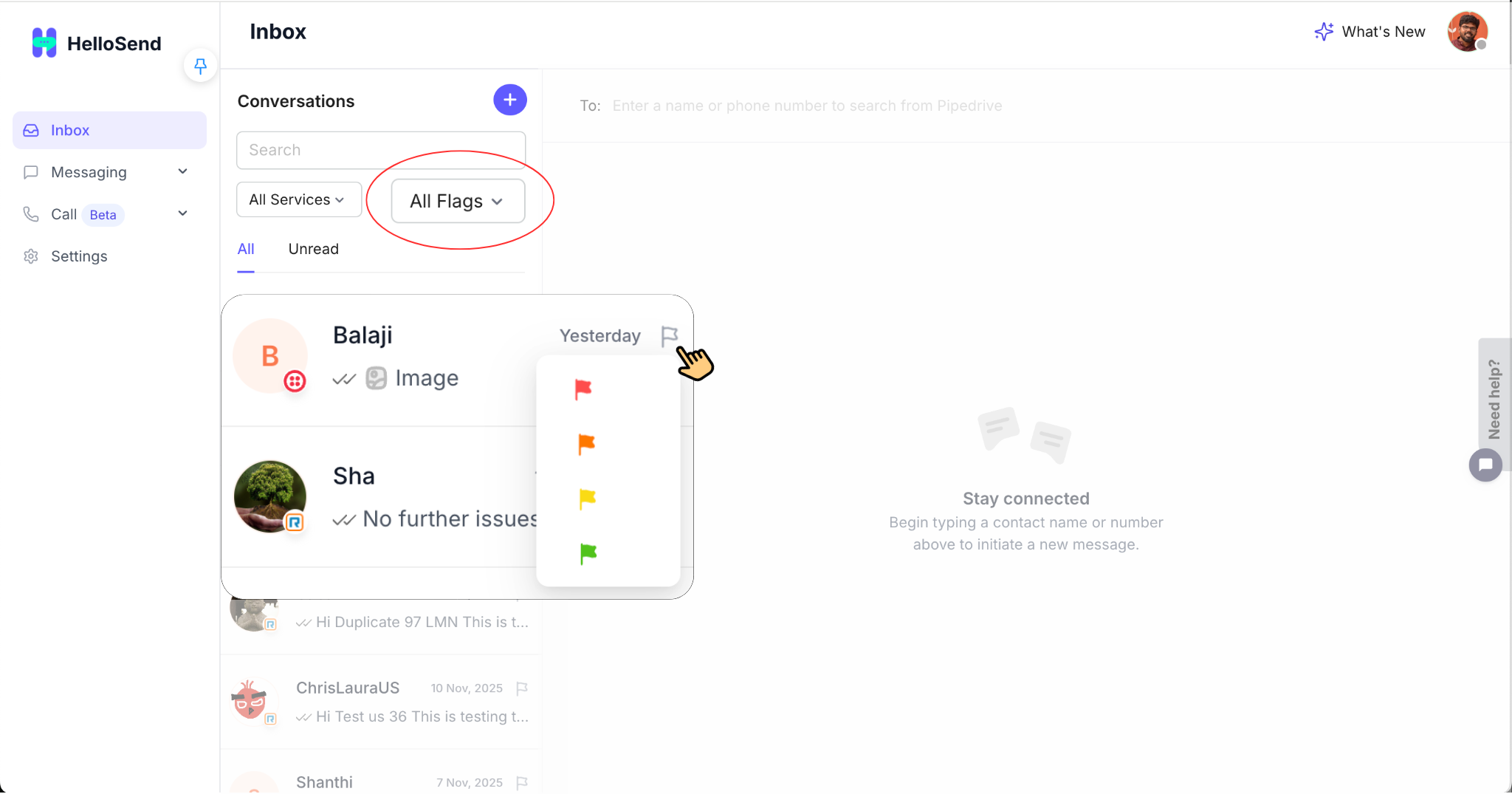
Flags appear on the right side of each conversation row. Clicking the flag icon opens a small menu with color options.
- Hover over a conversation in the list.
- Click the flag icon on the right.
- Choose one of the four colors:
- 🔴 Red – critical or urgent
- 🟠 Orange – follow-up required
- 🟡 Yellow – low or normal priority
- 🟢 Green – resolved/complete or tagged as done
- The chosen flag appears next to the conversation and can be changed or cleared at any time.
🎯 Filtering by Flags
At the top of the Inbox list, use the “All Flags” dropdown to focus on specific flagged conversations.
- Show only Red flags to focus on urgent issues.
- View Orange for follow-up tasks or callbacks.
- Filter Yellow for low-priority or backlog items.
- Check Green to review completed or closed conversations.
- Select All Flags to return to the full list.
⭐ Why Flags Matter
- Gives every conversation a clear visual priority.
- Prevents critical messages from getting lost in a long queue.
- Helps teams manage their work like a kanban board inside the Inbox.
- Makes it easier for managers to quickly scan for urgent items.
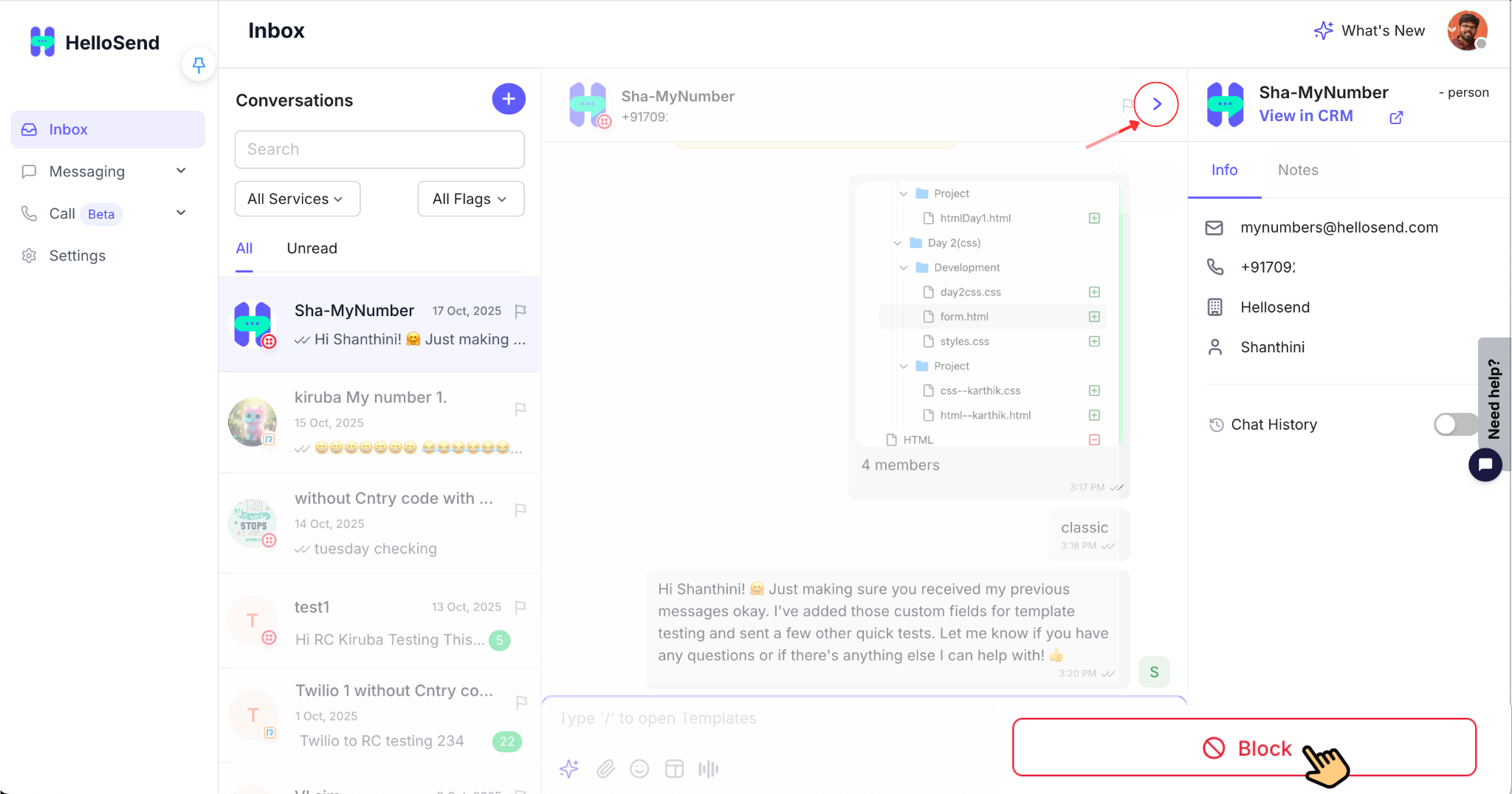
👤 Viewing Contact Information & Chat History
When you open a conversation, HelloSend shows detailed contact information and complete chat history so agents always reply with full context.
👤 Contact Information Panel
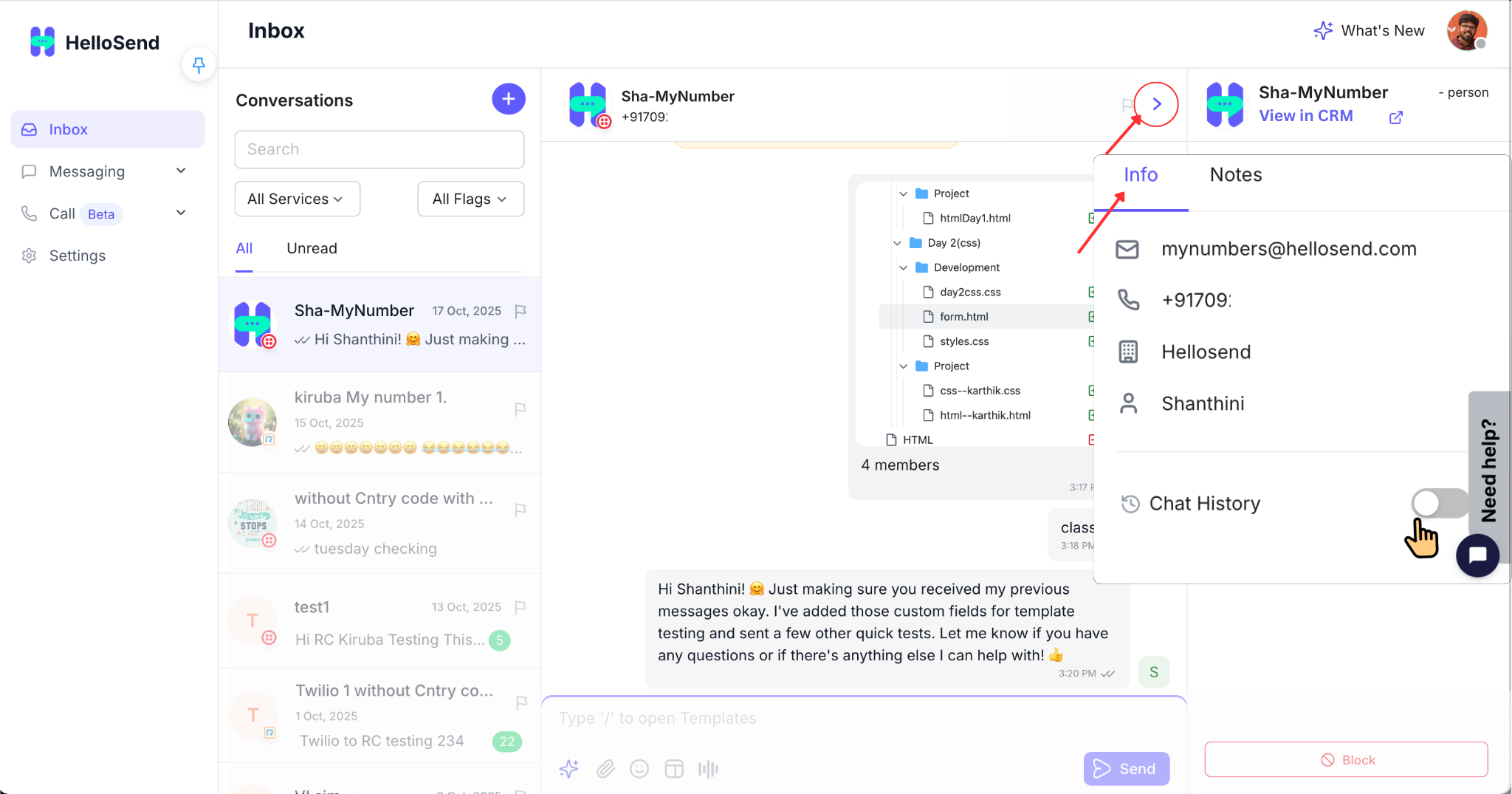
The right-hand panel displays CRM data linked to the conversation, helping you personalize every reply.
- Name – the full CRM contact name; if the number is new, the phone number is shown instead.
- Phone Number – the exact number used in the current conversation.
- Email Address – quick access if you need to follow up via email or add them to an email flow.
At the top of the conversation, click the small arrow ( > ) next to the contact's name to expand or collapse this panel.
🗂️ Viewing Full Chat History
The conversation timeline shows a complete history of your interaction with each contact across supported channels.
- Past SMS – all sent and received SMS messages, including timestamps and delivery status.
- WhatsApp History (if connected) – text, templates, media, reactions, emojis, and voice notes.
- Media & Attachments – files shared earlier can be revisited directly within the timeline.
⭐ Why This Matters
- Gives agents full context before replying to the customer.
- Reduces repeated questions and improves customer satisfaction.
- Makes it easy to audit past conversations for quality or compliance.
⛔ Blocking Contacts
The Blocking feature helps you protect your team and Inbox from spam, abusive content, or irrelevant messages. You can block problematic contacts directly from within a conversation.
⛔ What Happens When You Block a Contact
- The contact can no longer send messages to your Inbox.
- The conversation is clearly marked as blocked, so agents know not to engage.
- Notifications, unread counts, and alerts from that number are no longer triggered.
Use blocking for spam, harassment, fake leads, or contacts who shouldn’t interact with your business.
⭐ Why Blocking Matters
- Keeps your Inbox clean and professional.
- Prevents agents from wasting time on non-genuine conversations.
- Improves safety and focus for your communication team.
🧩 Using Notes for Internal Collaboration
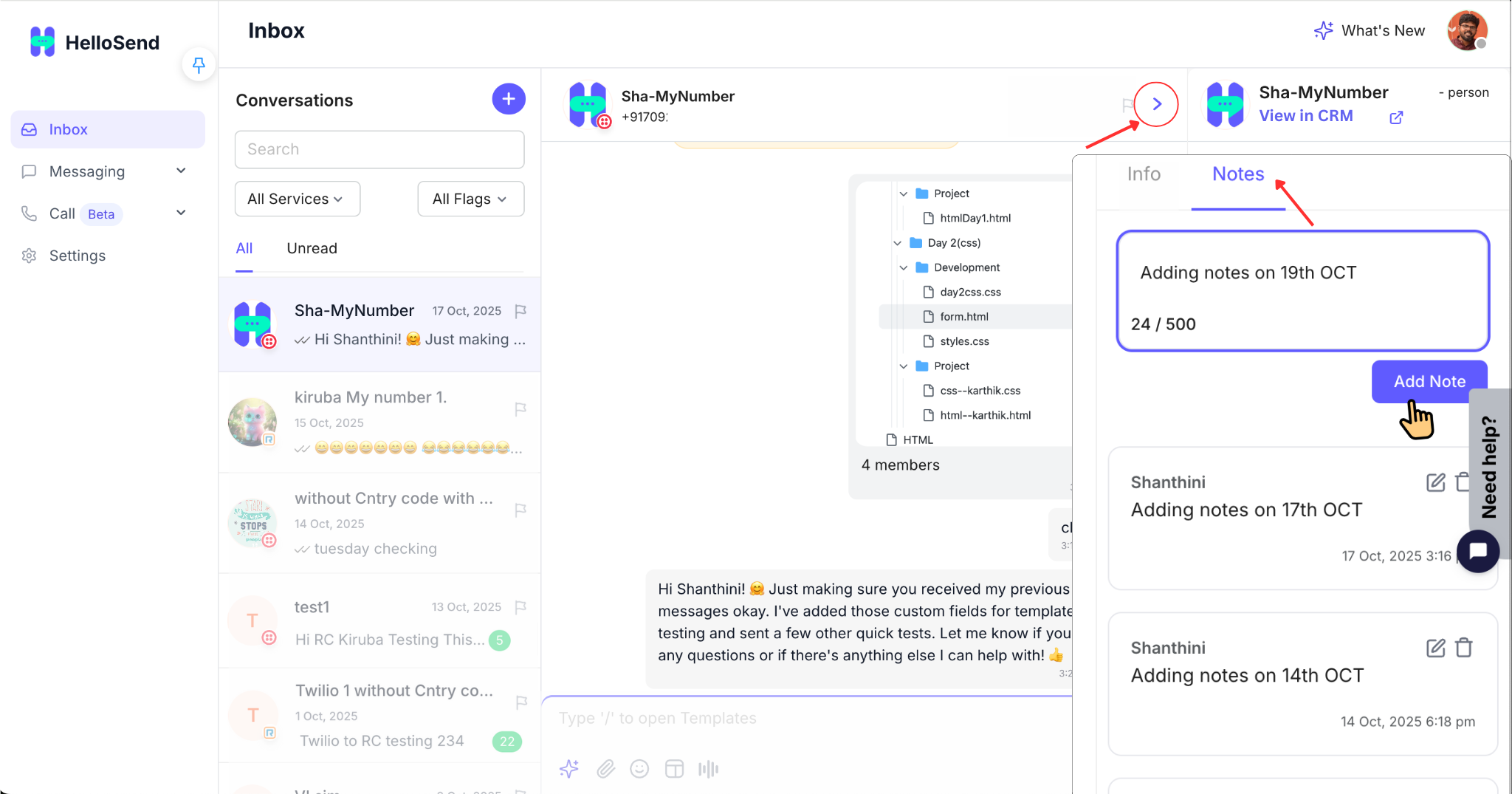
Notes let your team collaborate internally without sending anything to the customer. They live inside each conversation and are visible only to your internal users.
📝 How Notes Work
- Add notes while chatting to capture context or next steps.
- Notes are never sent to the customer and are clearly distinguished from regular messages.
- Use them for:
- Follow-up reminders
- Handover instructions to another agent
- Storing extra account or billing details
- Highlighting important points for the account owner
⭐ Why Notes Matter
- Helps teams coordinate without cluttering the customer view.
- Preserves internal knowledge inside the conversation.
- Makes handovers between shifts or owners smooth and documented.
🤖 AI-Assisted Suggested Replies
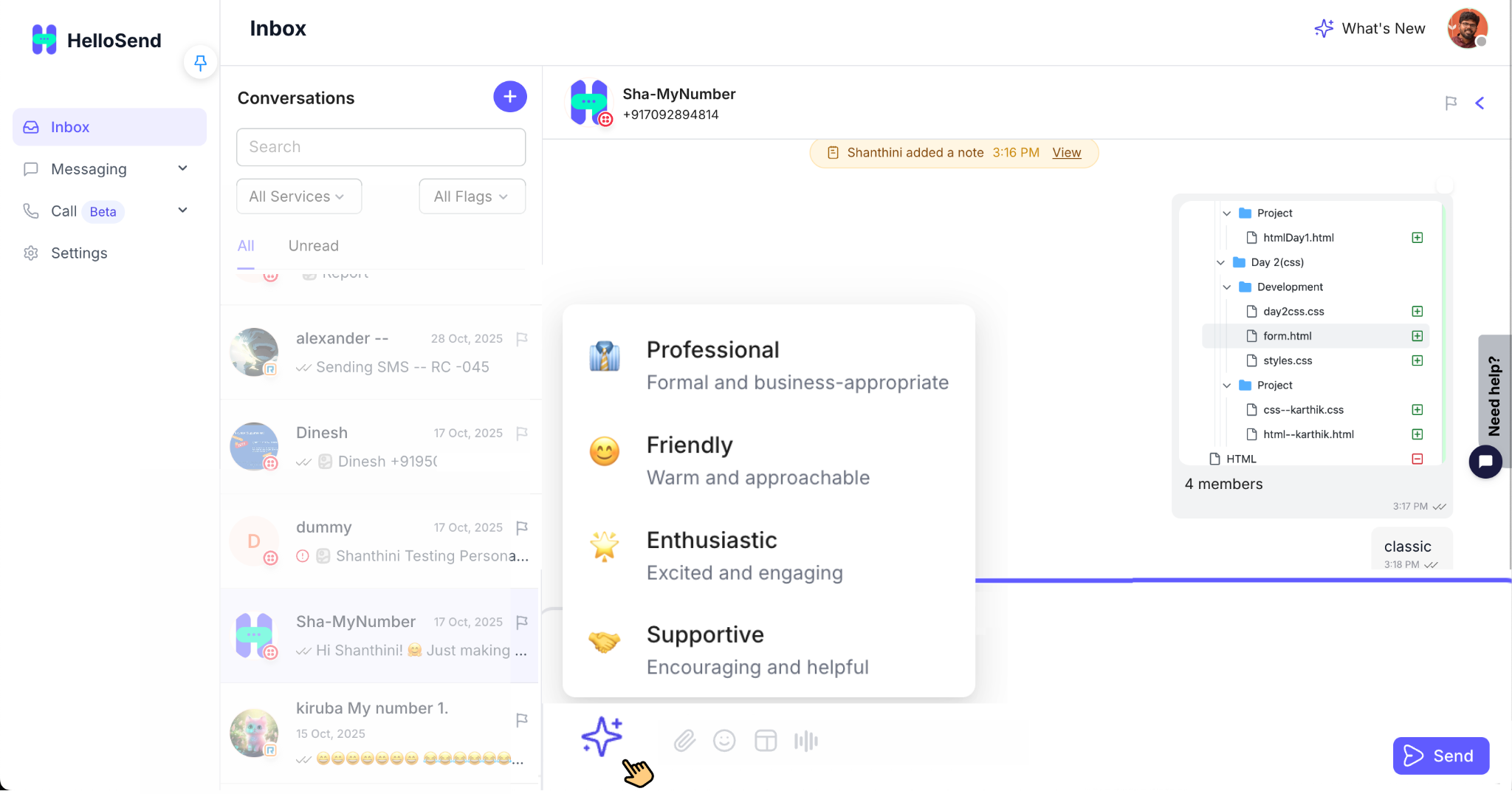
HelloSend’s AI engine can generate context-aware suggested replies for incoming messages, helping agents respond faster while keeping tone and quality consistent.
🤖 What AI Replies Can Do
- Read the current conversation and propose relevant reply options.
- Draft polite, accurate, and well-formatted messages for common questions.
- Offer multiple tones, such as:
- Professional
- Friendly
- Enthusiastic
- Supportive
- Allow agents to edit before sending to keep full control.
⭐ Why AI Replies Matter
- Reduces typing time for high-volume teams.
- Standardizes communication quality across agents.
- Helps new team members reply confidently with guided suggestions.
📎 Sending Attachments
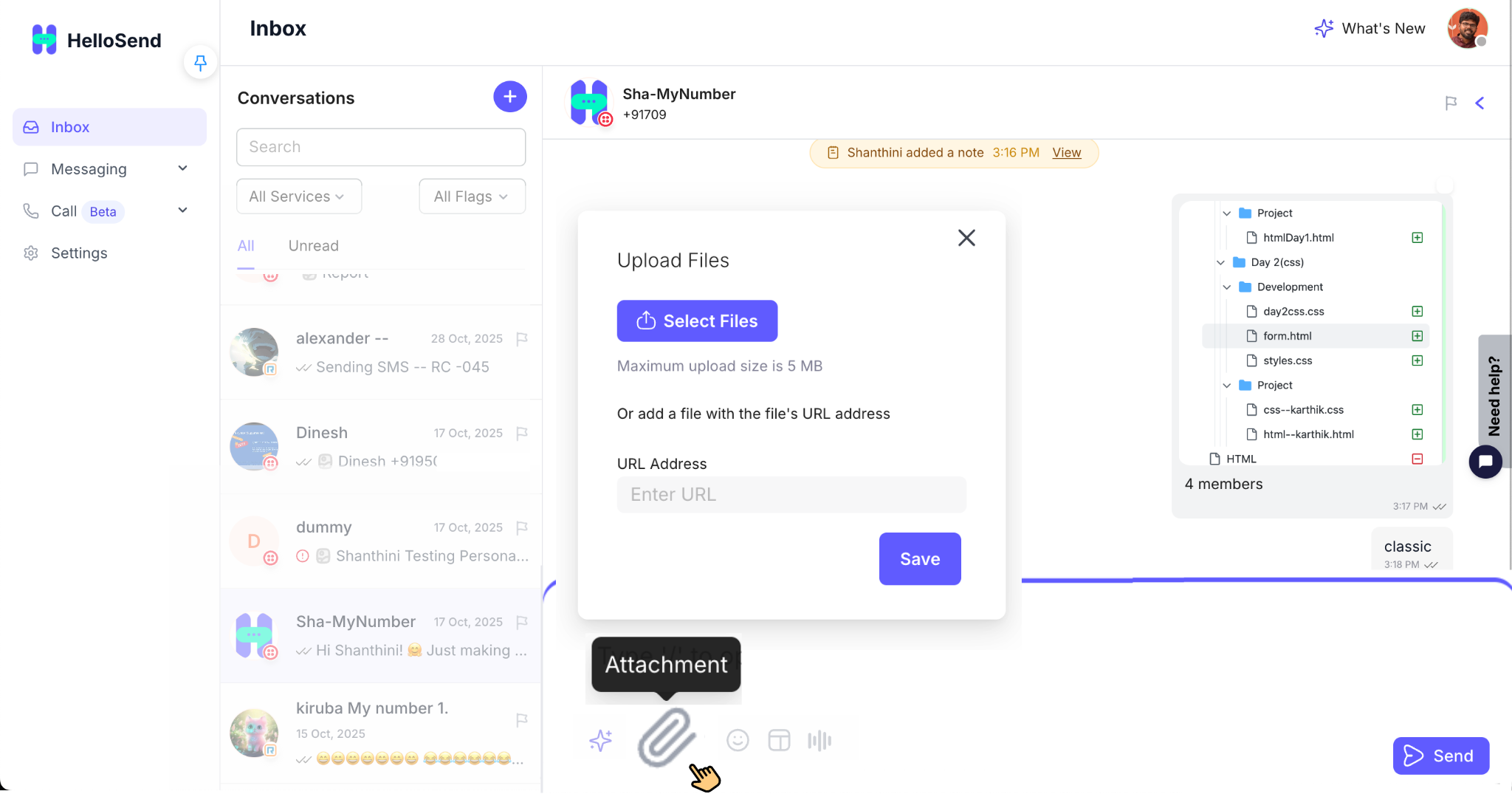
The HelloSend Inbox supports secure file attachments, allowing you to share documents, media, and resources directly within conversations.
📎 Supported File Types & Limits
You can upload the following types of files (up to 5 MB per file):
- Images – PNG, JPG/JPEG
- Documents – PDF, DOC, DOCX, RTF, TXT
- Video files – short clips for demos or explanations
- URL Attachments – paste a file URL (e.g., Google Drive, Dropbox) to share larger content
⭐ Why Attachments Matter
- Makes conversations more informative and visual.
- Lets you share proposals, invoices, guides, and screenshots instantly.
- Reduces the need for external email threads just to share documents.
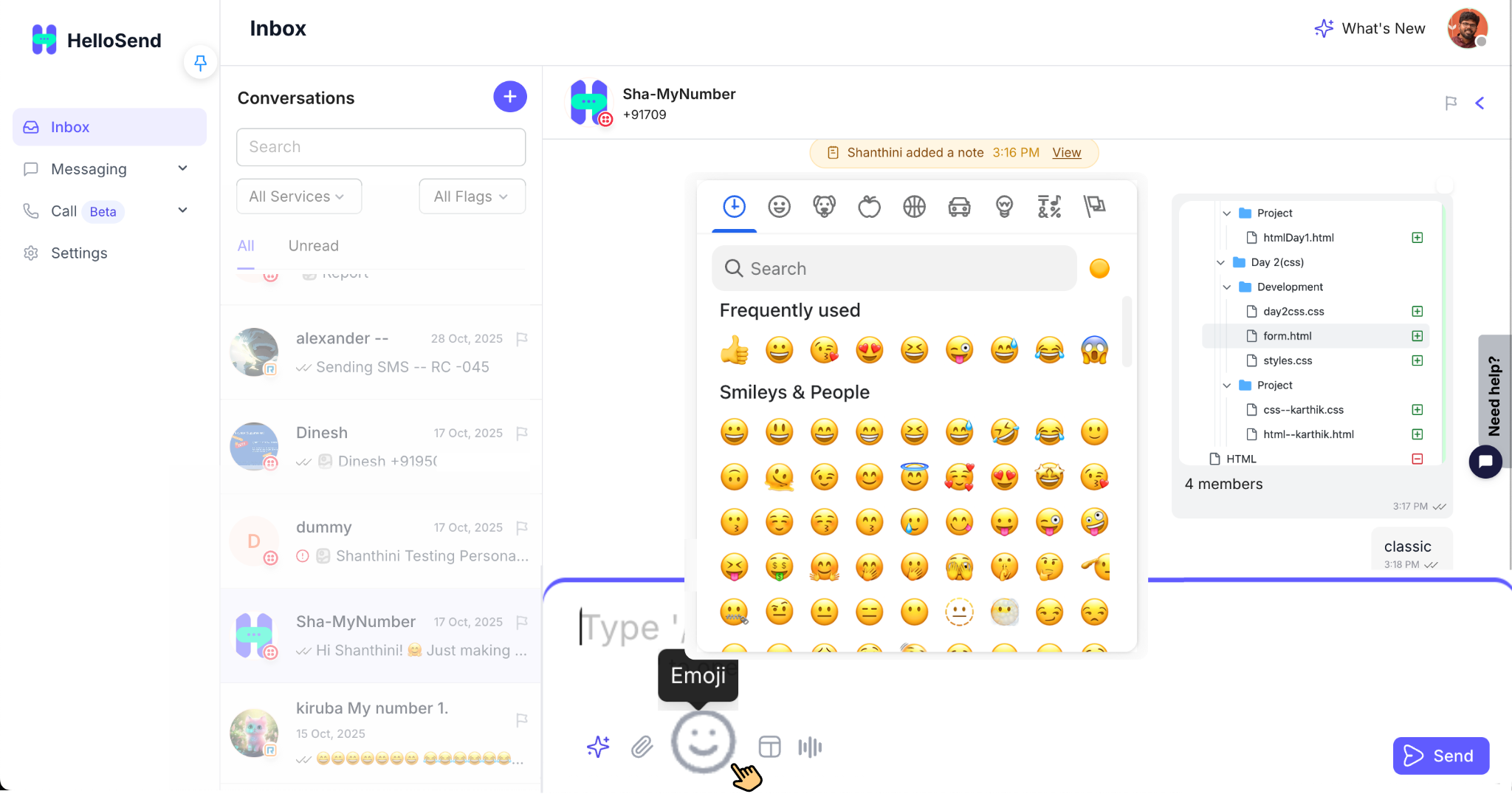
😊 Adding Emojis for Friendly Conversations
The built-in emoji picker lets agents add emotion and personality to their messages, making conversations feel more human and relatable.
😊 How Emojis Help
- Add personality – soften replies with 👍, 😊, 🎉, or 🔧 depending on the message.
- Improve engagement – make messages feel conversational and easy to read.
- Match customer tone – especially useful when customers already use emojis.
Emojis are supported in both WhatsApp and SMS (Unicode). If a device doesn’t support a specific emoji, a safe fallback character is shown.
⭐ Why Emojis Matter
- Makes support and sales conversations feel warmer and more human.
- Helps convey tone and emotion that plain text sometimes lacks.
- Can defuse tension or confusion with a friendly, empathetic tone.
📄 Using Templates for Faster Messaging
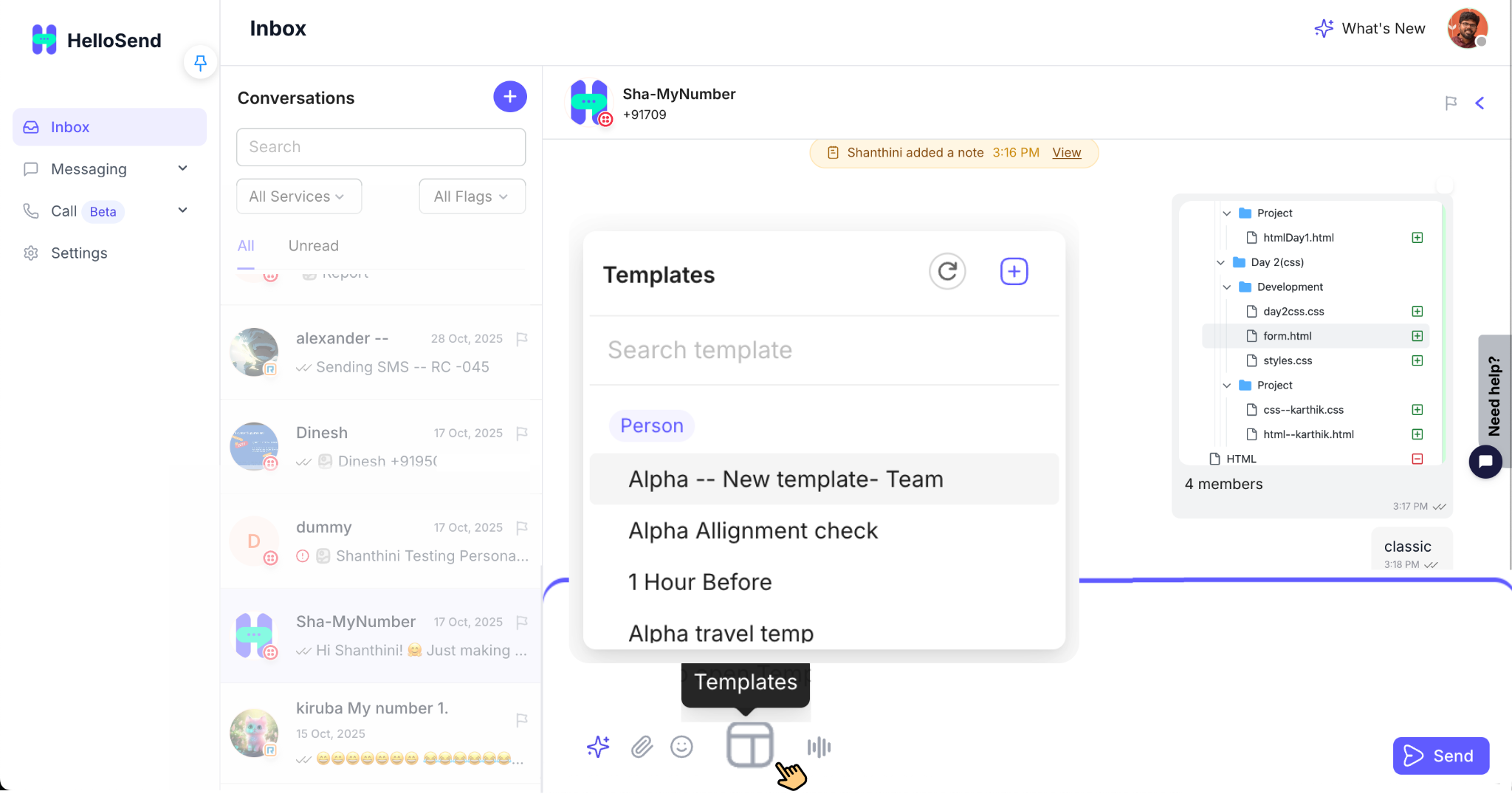
Templates let your team send pre-approved, reusable messages for SMS and WhatsApp. They save time, improve consistency, and support compliance requirements for WhatsApp WABA.
📄 Types of Templates
- WhatsApp WABA Templates – pre-approved by Meta for:
- Reminders, alerts, OTPs
- Promotional and marketing messages
- Messages sent outside the 24-hour window
- SMS Templates – ideal for:
- Follow-up reminders and confirmations
- Campaign messages and offers
- Onboarding and status updates
- Mail-merge Support – use variables like
{{Name}},{{Company}},{{Appointment Date}},{{Agent}}for personalization at scale.
⚡ Why Templates Matter
- Speeds up responses for repetitive questions.
- Ensures brand-consistent wording across all agents.
- Supports WABA compliance for WhatsApp business messaging.
- Enables personalization at scale for campaigns and automations.
🎤 Sending Voice Messages
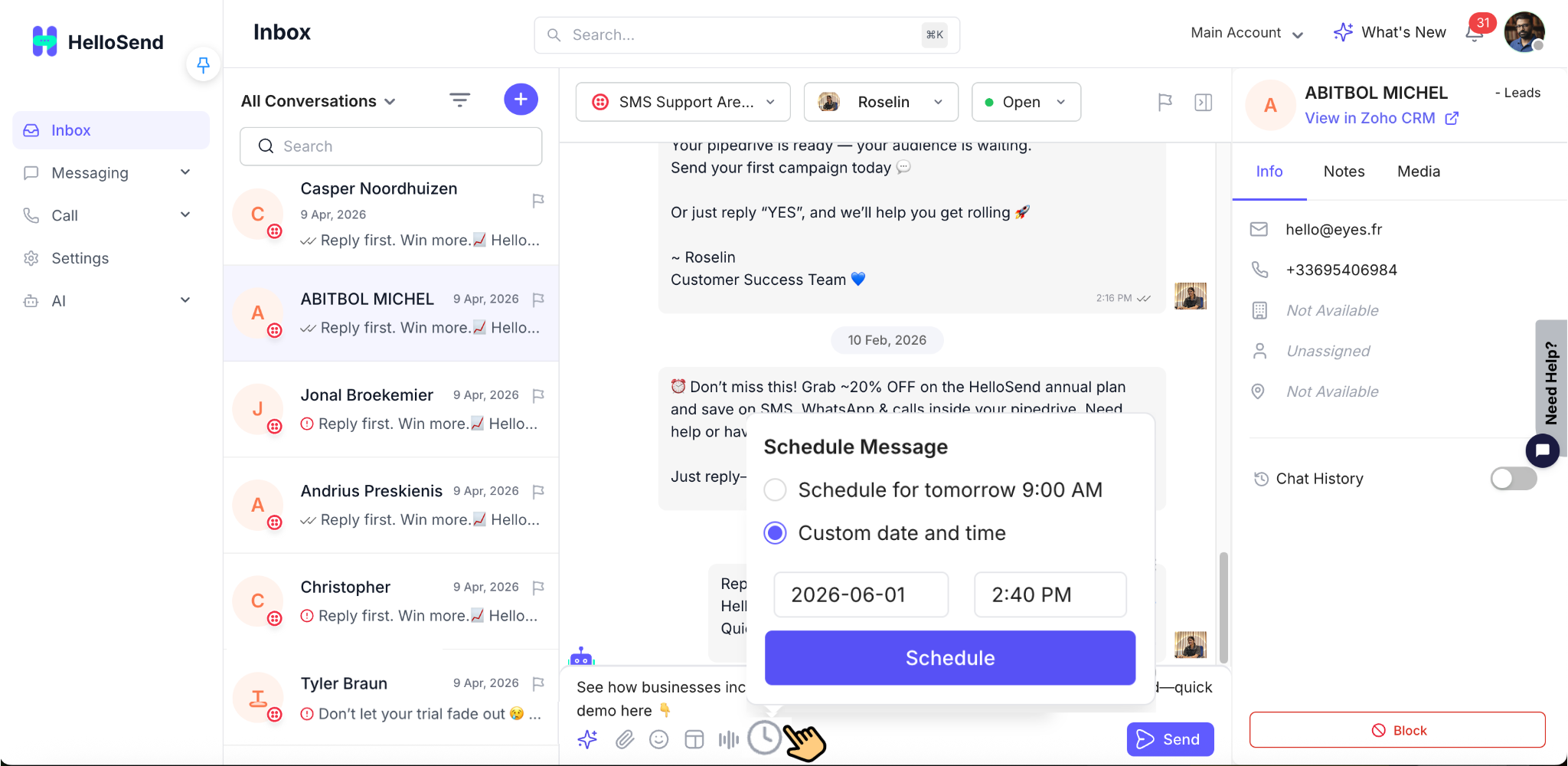
Voice messages let agents send quick, human, and detailed audio replies directly from the Inbox. They’re ideal when typing is slow or when explanations are complex.
🎤 Why Voice Messages Are Useful
- Fast spoken responses when you don’t have time to type.
- Clear explanations for technical topics, walkthroughs, or multi-step instructions.
- Personal touch that builds trust and connection with customers.
- Hands-free replies while multitasking or working on the move.
⭐ Best Use Cases
- Sales reps following up with high-value leads.
- Support agents explaining complex fixes or troubleshooting.
- Account managers sending personal updates or check-ins.
🕒 Schedule Messages
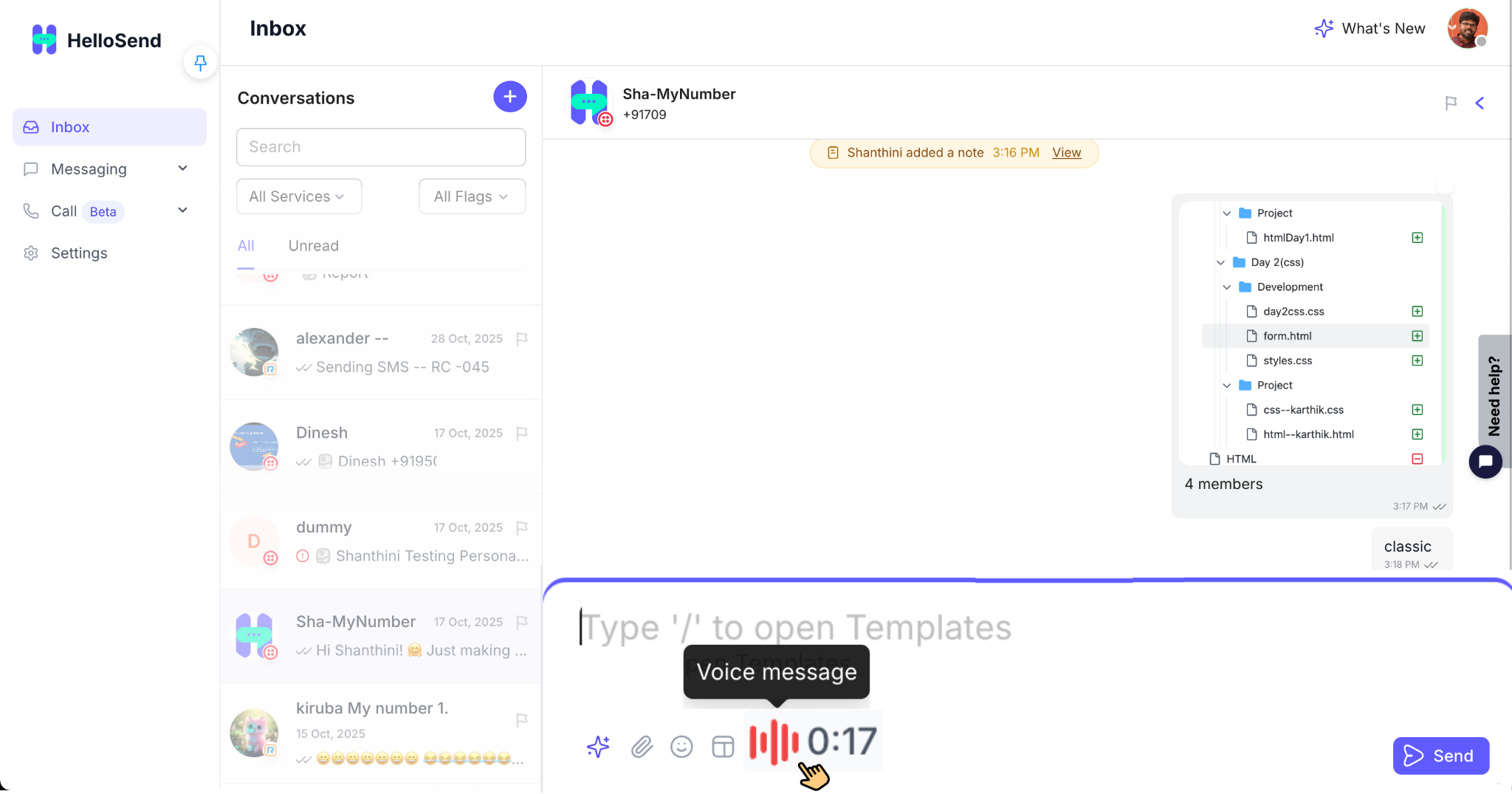
With HelloSend, you can schedule SMS and WhatsApp messages directly from the Inbox without needing additional campaigns or automations. This feature helps teams send follow-up messages, appointment reminders, sales outreach, and customer communications at the perfect time, even when they are offline. Scheduled messages remain queued in HelloSend and are automatically delivered on the selected date and time.
Schedule Messages Directly from the Inbox
Users can schedule individual SMS or WhatsApp messages while chatting with a customer inside the HelloSend Inbox. Instead of sending a message immediately, simply choose the scheduling option and select when the message should be delivered. This allows sales, support, and customer service teams to plan future communications without manually remembering to send them later.
Choose Custom Date and Time for Message Delivery
HelloSend provides complete flexibility when scheduling messages. Users can select any future date and time based on their communication needs. Whether it's a follow-up next week, a reminder tomorrow morning, or a message that needs to be delivered at a specific hour, HelloSend ensures the message is automatically sent at the scheduled time.
Quick Scheduling Options for Faster Workflows
To make scheduling even faster, HelloSend includes quick scheduling shortcuts. Instead of manually selecting a date and time every time, users can choose predefined options such as later today, tomorrow, next week, or other convenient time selections. These shortcuts help teams schedule messages in just a few clicks and improve daily productivity.
Edit or Reschedule Messages Anytime Before Sending
Scheduled messages are not permanent until they are sent. Users can review their upcoming scheduled messages and make changes whenever needed. If a customer responds earlier than expected or plans change, the scheduled message can be edited, rescheduled to a different time, or deleted completely before delivery. This provides greater flexibility and prevents unnecessary communications.
Benefits of Scheduling Messages
- Never miss important follow-ups with leads and customers.
- Send messages at the most appropriate time for better engagement.
- Improve sales and support response workflows.
- Save time by planning communications in advance.
- Reduce manual tasks and increase team productivity.
- Maintain consistent customer communication even outside business hours.
Conclusion
The Schedule Messages feature helps teams stay organized and communicate more effectively by allowing SMS and WhatsApp messages to be planned in advance. With flexible scheduling, quick time-selection options, and the ability to edit or reschedule messages before delivery, HelloSend makes customer follow-ups and ongoing communication easier than ever.
💬 Sending SMS from the Inbox
The HelloSend Inbox lets you send quick, reliable SMS messages directly from the chat window. You can type, personalize, and send replies without leaving your CRM — while keeping every message logged automatically.
✉️ How to Send an SMS from the Inbox
- Go to Inbox from the left sidebar.
- Select a conversation or click + to start a new one.
- Use the large text box at the bottom to type your SMS message.
- Optionally add attachments, emojis, templates, AI replies, or voice notes using the icons below the text box.
- Click the Send button on the right to deliver your SMS.
🎛️ Message Tools You Can Use
- 📎 Attachments: Send images, PDFs, documents, videos (up to 5 MB).
- 😀 Emojis: Add tone and personality to your SMS replies.
- ⚡ AI Suggestions: Generate quick, context-aware responses.
- 📝 Templates: Insert saved SMS/WhatsApp templates with merge fields.
- 🎤 Voice Notes: Record and send short audio clips when needed.
📡 What Happens After You Send
- The SMS appears immediately in the conversation timeline with a timestamp.
- Delivery status indicators (✓ Sent, ✓✓ Delivered, or error) update automatically.
- Your default Country Code is applied if the number doesn’t include one.
- The message is logged in your CRM based on your Logging Preference settings (Notes or Activities).
⭐ Why Sending SMS from Inbox Matters
- Respond to customers instantly without switching tools.
- Keep all text conversations fully tracked inside your CRM.
- Use AI, templates, and media to send richer, more accurate replies in less time.
- Give sales and support teams a single place to manage all SMS communication.

✅ Benefits of Using the HelloSend Inbox
Unified Multichannel Inbox – HelloSend brings all communication channels—SMS, WhatsApp, and voice calls—into one unified Inbox. Your team no longer needs to switch between apps or browser tabs. Every conversation appears in one place, making it easier to track and manage customer interactions across services and phone numbers.
Smart & Consistent Responses – HelloSend enables your team to respond faster and more consistently. AI-powered suggestions help craft instant replies, while templates ensure brand-consistent messaging. Emojis, attachments, and voice notes support richer communication without slowing down productivity.
Streamlined Team Productivity – The Inbox includes organizational tools such as flags, filters, and internal notes that keep workflows smooth. You can choose between user-based or organization-based read behavior, ensuring the Inbox matches your team's preferred working style.
Complete Customer Visibility – Every conversation provides full customer context. Agents can view the entire message history, media files, notes, and CRM details like name, email, and ownership. This ensures replies are informed, personalized, and consistent.
Deep CRM Integration – HelloSend works seamlessly within your CRM. All messages sync automatically to contacts, deals, and tickets. New leads can be created from incoming conversations, and communication logs stay clean and accurate without any manual entry.
Built for Teams of Any Size – HelloSend scales effortlessly—from small sales teams to large support desks. Shared Inbox workflows, service-based views, and support for multiple phone numbers make it ideal for multi-brand, multi-region, or multi-department setups.
Secure & Compliant Messaging – With WABA-approved templates, consent handling, blocking tools, and accurate message logging, HelloSend ensures every message follows compliance standards. This protects your customers and safeguards your business operations.
🎉 Conclusion
The HelloSend Inbox is more than just a messaging screen — it is a complete communication command center built for speed, clarity, and team collaboration. By bringing SMS, WhatsApp, calls, templates, AI replies, notes, flags, and contact details into one streamlined interface, HelloSend helps businesses deliver faster responses and maintain professional, personalized communication at every step.
Whether you're managing leads, supporting customers, or coordinating with your team, the Inbox ensures you always have the right information, the right tools, and the right context — all in one place. With its service-based structure, intelligent sorting, automation-ready workflows, and deep CRM integration, HelloSend transforms customer conversations into an organized, efficient, and scalable experience.