

What is an External Webhook?
An External Webhook enables external systems to notify HelloSend in real time whenever a specific event occurs.
Instead of waiting for events inside your CRM, HelloSend listens for incoming webhook requests and automatically executes the configured Trigger Rule when a webhook is received.
Common use cases include:
- Customer submits a website form
- Online payment is completed
- Appointment is booked
- New order is created
- External CRM updates a customer
- Custom applications trigger customer communications
Configure External Webhook
Step 1: Create a New Trigger Rule
Create a new Trigger Rule by providing the required rule information.
Once the rule is created, the next step is to configure the trigger that will start the automation.
Step 2: Select External Webhook
From the available trigger types, choose External Webhook.
This option tells HelloSend to wait for webhook requests sent by an external application or service.
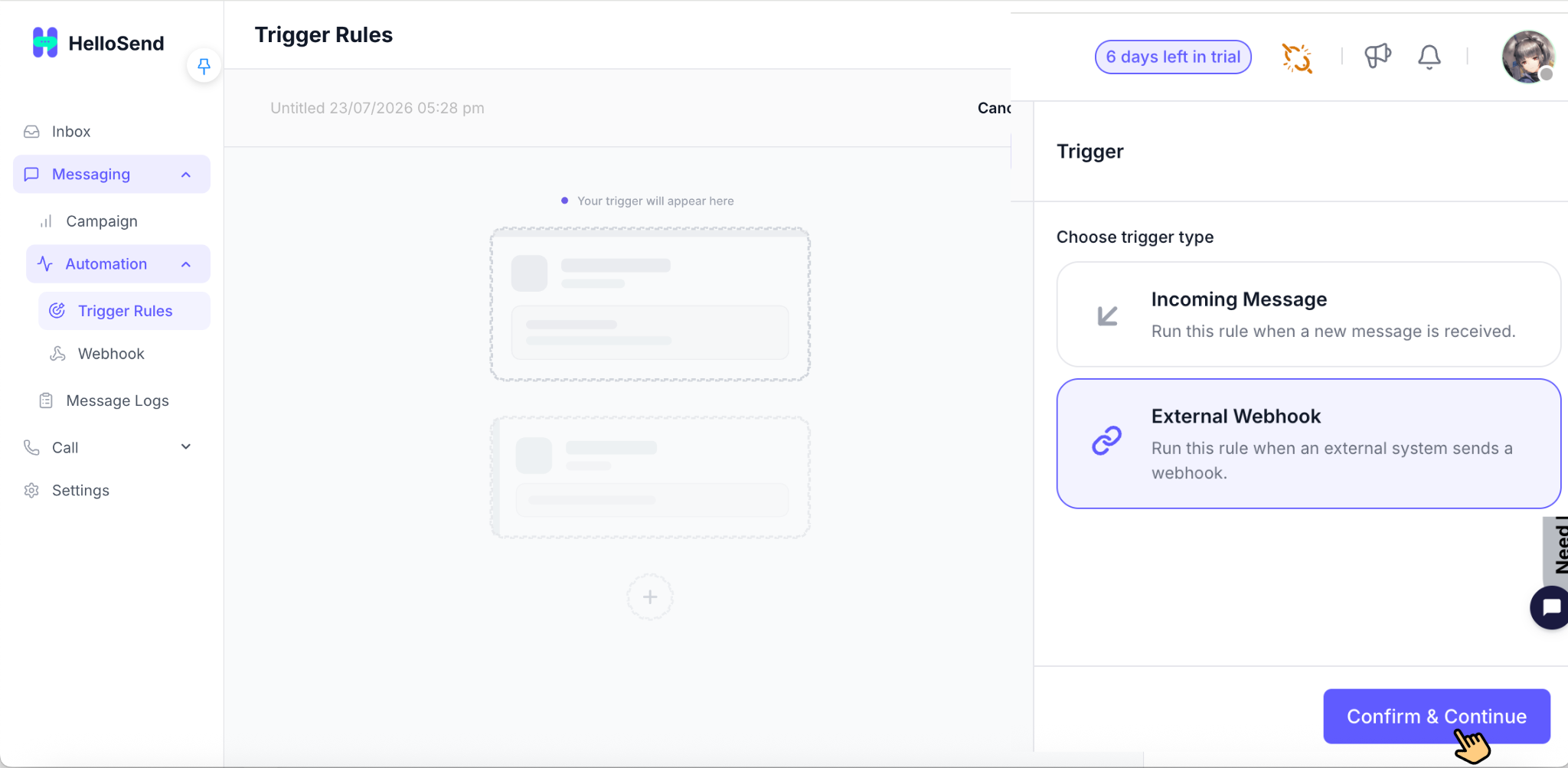
Step 3: Run the Rule When an External System Sends a Webhook
After selecting External Webhook, HelloSend will listen for incoming webhook requests.
Whenever an external application sends data to the webhook endpoint, HelloSend receives the payload and starts processing the rule.
Click Confirm & Continue to proceed.
How Should HelloSend Find the Customer's Phone Number?
Before HelloSend can send an SMS, WhatsApp message, or perform any communication action, it needs to identify the customer's phone number.
Choose one of the following methods.
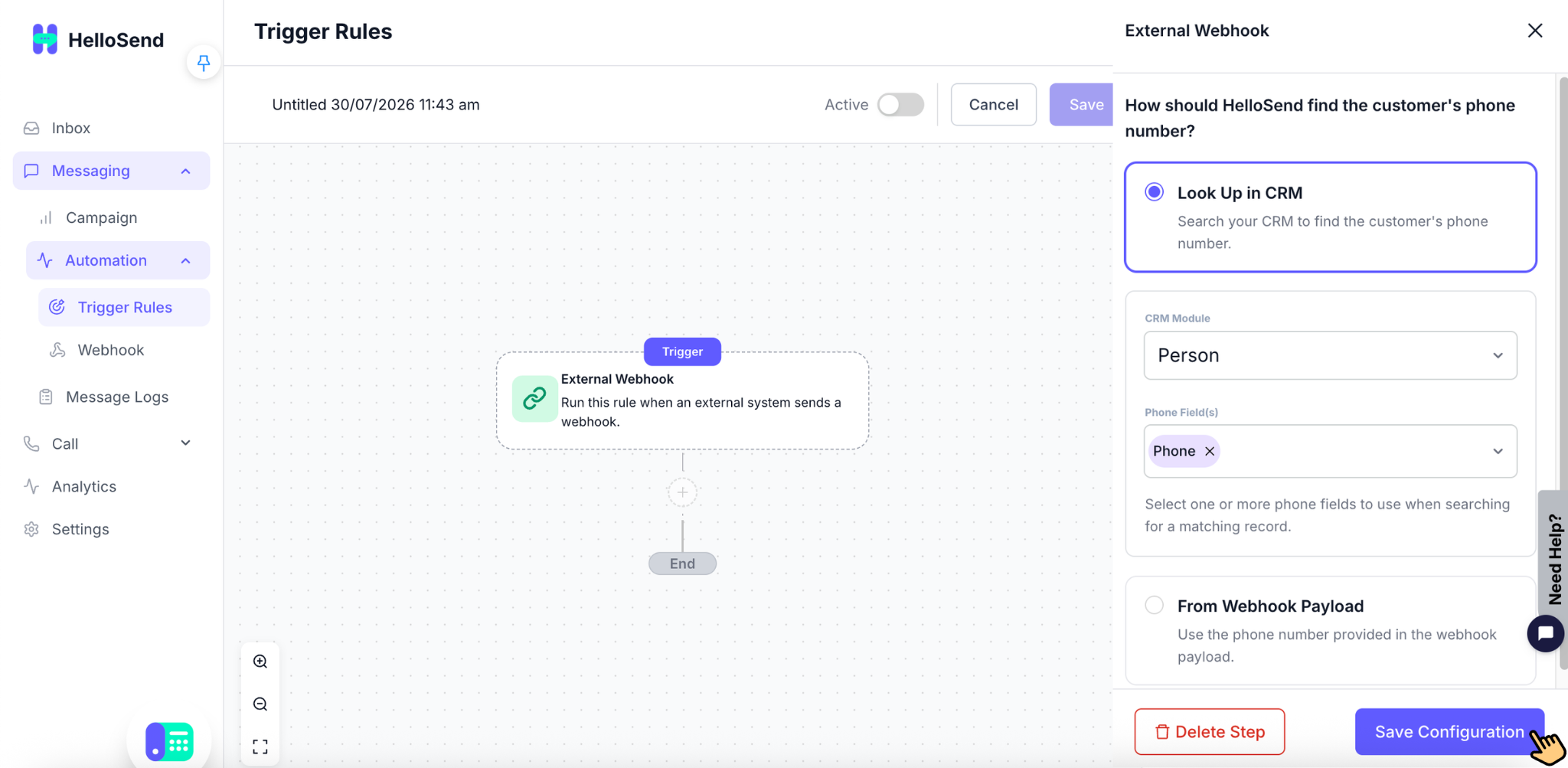
Option 1: Look Up in CRM
Use this option when your customer information already exists in your CRM.
Instead of sending the customer's phone number in the webhook, HelloSend searches your CRM using the configured record and retrieves the phone number automatically.
Configuration Steps
1. Search Your CRM
Enable Look Up in CRM.
HelloSend will search your CRM to locate the customer record.
2. Select the CRM Module
Choose the CRM module where customer information is stored.
Examples include:
- Contacts
- Leads
- Accounts
- Custom Modules
3. Select the Phone Field
After selecting the CRM module, HelloSend displays all available phone fields for that module.
Choose the field that contains the customer's phone number.
For example:
- Mobile
- Phone
- Work Phone
- Custom Phone Field
4. Save the Configuration
Click Save Configuration to complete the CRM lookup setup.
Whenever a webhook is received, HelloSend will search the selected CRM module, retrieve the customer's phone number from the configured phone field, and continue executing the automation.
Why Use CRM Lookup?
Choose Look Up in CRM when:
- Customer records already exist in your CRM.
- Phone numbers are managed inside the CRM.
- You want HelloSend to always use the latest customer information.
- You want to avoid sending phone numbers from external applications.
Option 2: From Webhook Payload
Use this option when the webhook already includes the customer's phone number.
Instead of searching your CRM, HelloSend reads the phone number directly from the incoming webhook payload and uses it for the automation.
Configuration Steps
1. Select From Webhook Payload
Choose From Webhook Payload as the phone number source.
2. Use the Phone Number from the Payload
HelloSend extracts the phone number directly from the webhook request.
No CRM lookup is performed.
This option is best suited for external applications that already send complete customer information within the webhook.
Why Use Webhook Payload?
Choose From Webhook Payload when:
- Your application already sends the customer's phone number.
- Customer information does not exist in your CRM.
- You want the fastest webhook processing.
- You are integrating with custom applications or third-party systems.
What's Next?
Once you click Confirm & Continue, the trigger configuration is complete.
You can now define the logic for your automation by adding Conditions and Actions.
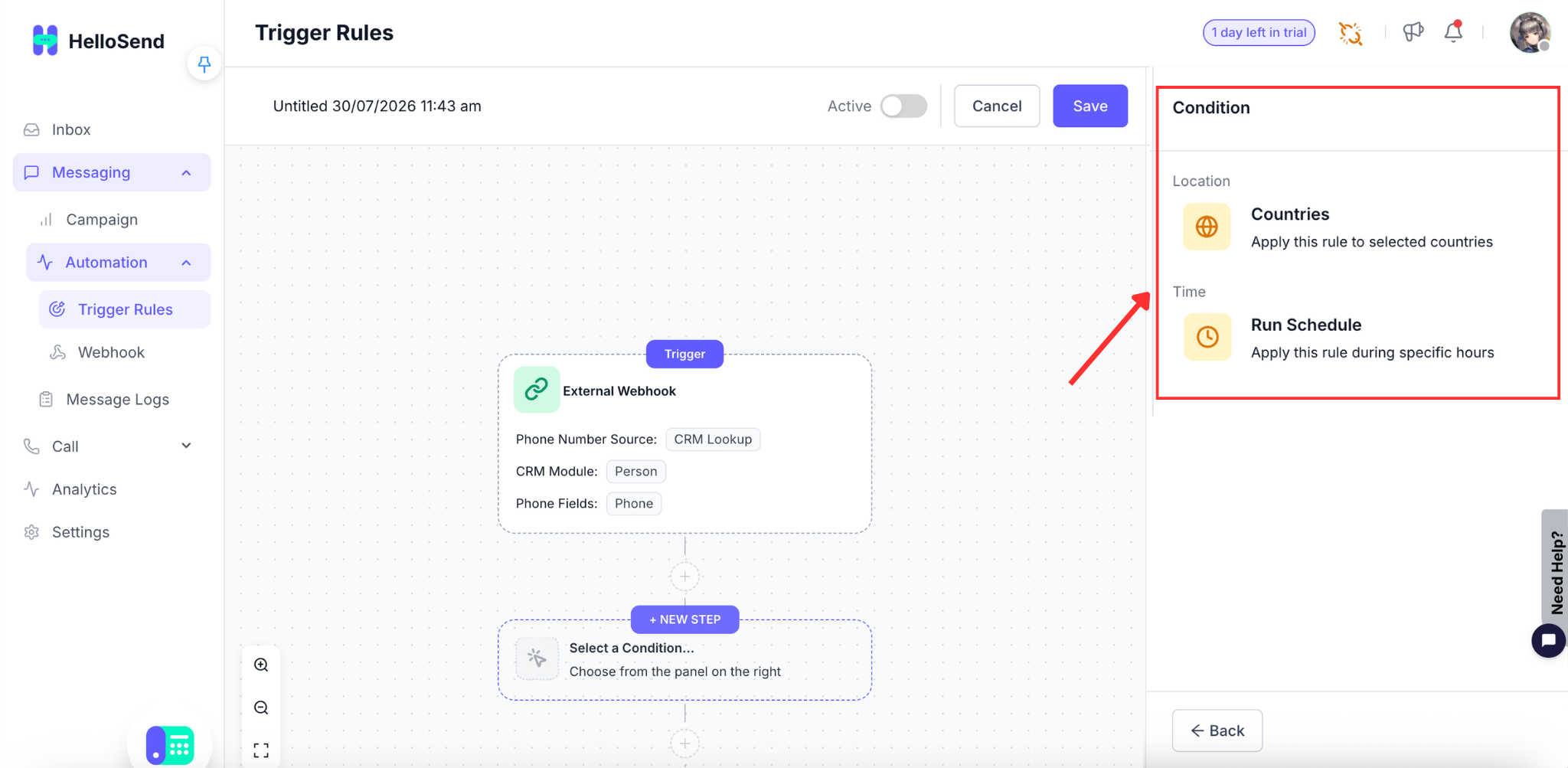
Add Condition
Conditions determine when the Trigger Rule should execute after an external webhook is received.
For the External Webhook trigger, you can configure the following conditions to control when your automation runs.
Countries
Use the Countries condition to run the Trigger Rule only for customers from selected countries. HelloSend identifies the customer's country using the phone number received from the CRM lookup or webhook payload. If the country matches one of the selected countries, the automation continues. Otherwise, the rule is skipped.
- Send country-specific SMS or WhatsApp messages.
- Create different workflows for different regions.
- Restrict automations to selected countries.
Run Schedule
Use the Run Schedule condition to define when the Trigger Rule should execute. You can configure the automation to run only during business hours or within custom days and time ranges. If a webhook is received outside the configured schedule, the rule will not execute.
- Run automations only during business hours.
- Avoid sending messages outside working hours.
- Schedule workflows based on your team's availability.
Why use Conditions?
Conditions ensure your Trigger Rule executes only for the right customers and at the right time, helping you deliver relevant communications while avoiding unnecessary automation.
Add Action
Actions define what HelloSend should do after the External Webhook trigger and configured conditions are met.
You can choose from the following actions:
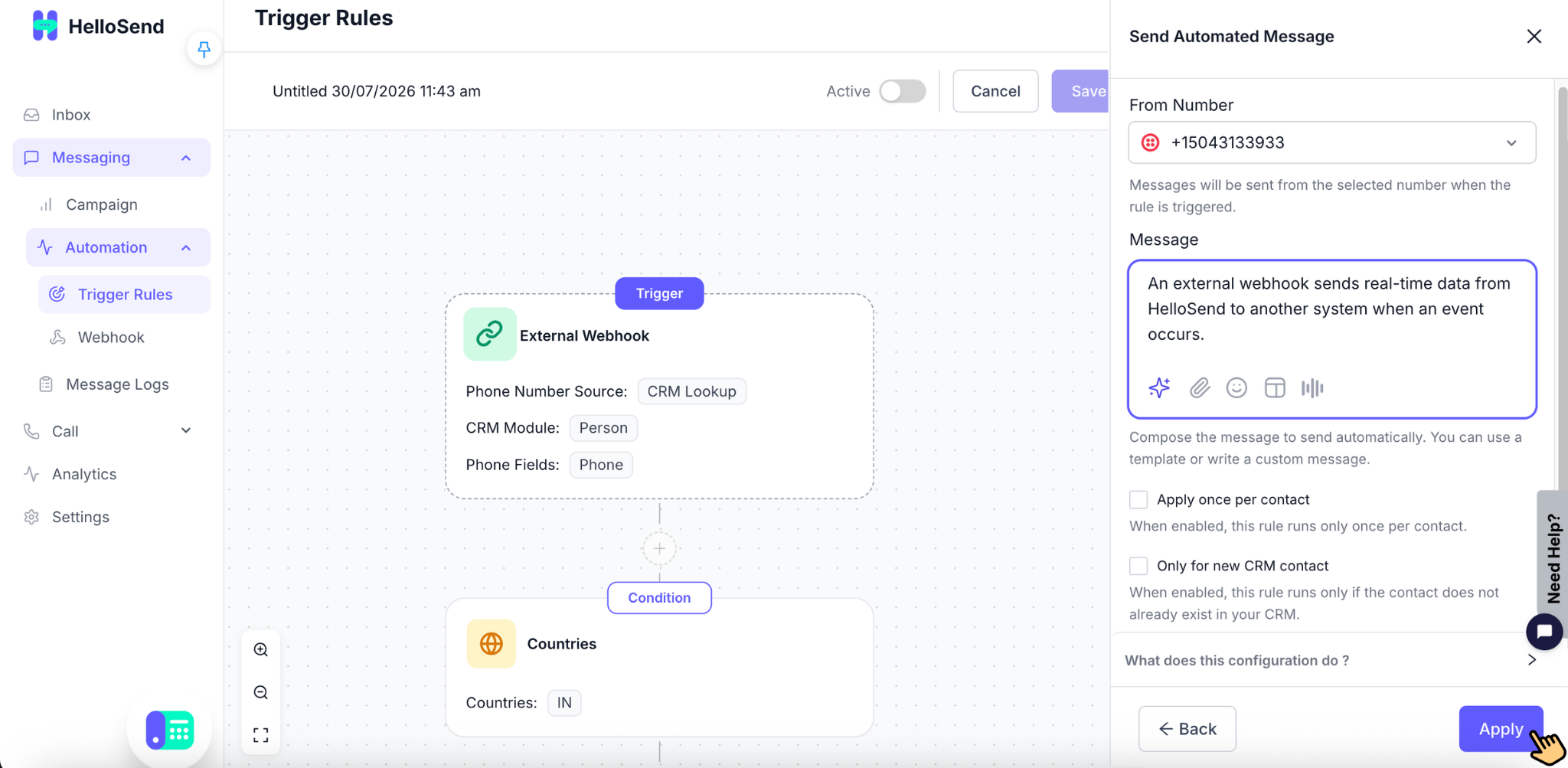
Automated Message
Use the Automated Message action to send an SMS or WhatsApp message automatically when the rule is triggered.
- Select the number from which the message should be sent.
- Enter a custom message or type / to select a template.
- Personalize the message using the available fields.
- Enable Apply once per contact to run the action only once for each contact.
- Enable Only for new CRM contact to run the action only when the contact does not already exist in your CRM.
Time Delay
Use the Time Delay action to wait for a specific duration before executing the next action in the workflow.
- Set the delay using days, hours, and minutes.
- The minimum delay is 15 minutes.
- The maximum delay is 30 days.
- After the delay ends, HelloSend automatically continues to the next configured action.
Automated Voice Call
Use the Automated Voice Call action to place an automated call to the customer when the rule is triggered.
- Select the voice number used to place the automated call.
- Enter the voice script or type / to select a template.
- The script is converted to speech and read aloud when the customer answers the call.
- Keep the voice script short, clear, and easy to understand.
You can add multiple actions to a single Trigger Rule. For example, you can send an automated message, add a time delay, and then place an automated voice call as part of the same workflow.
Save and Activate the Trigger Rule
After configuring the Trigger, Conditions, and Actions, the final step is to save and activate your Trigger Rule.
Enter a meaningful name for the Trigger Rule so it can be easily identified later. Once you've finished configuring the workflow, click Save to store the rule.
After saving, enable the Active toggle to activate the Trigger Rule. When the rule is active, HelloSend will listen for incoming webhook requests and automatically execute the configured workflow whenever the trigger and conditions are satisfied.

Key Benefits
- Automate customer communication by triggering workflows from external applications.
- Integrate with any webhook-enabled system , including websites, CRMs, ERPs, payment gateways, and custom applications.
- Choose how to identify customers using either CRM lookup or the phone number from the webhook payload.
- Respond instantly with automated SMS or WhatsApp messages when external events occur.
- Reduce manual work by eliminating repetitive messaging tasks.
- Create flexible workflows by combining triggers, conditions, and multiple actions.
- Keep customer data accurate by retrieving the latest phone numbers directly from your CRM.
- Scale your automation across multiple business processes with real-time webhook integrations.
Conclusion
The External Webhook trigger enables HelloSend to automatically start messaging workflows whenever an external application sends a webhook request. Whether you choose to retrieve the customer's phone number from your CRM or directly from the webhook payload , you can build powerful automations that save time, improve response speed, and deliver a seamless customer experience . Combine the trigger with Conditions and Actions to create intelligent workflows tailored to your business needs.




.webp)
