

Step-by-Step Guide to Send a One-on-One Message from Zoho Desk
Step 1: Open a Ticket in Zoho Desk
Log in to your Zoho Desk account and open the ticket of the customer you want to contact.
The ticket contains the customer and support request information needed to manage the conversation. You can use the HelloSend extension directly from the ticket to communicate with the customer without leaving Zoho Desk.

Step 2: Open the HelloSend DM Extension
From the ticket page, locate and open the HelloSend extension.
The HelloSend interface allows you to access messaging features directly within Zoho Desk. Once opened, you can start preparing your one-on-one message to the customer.

Step 3: Select the From Number
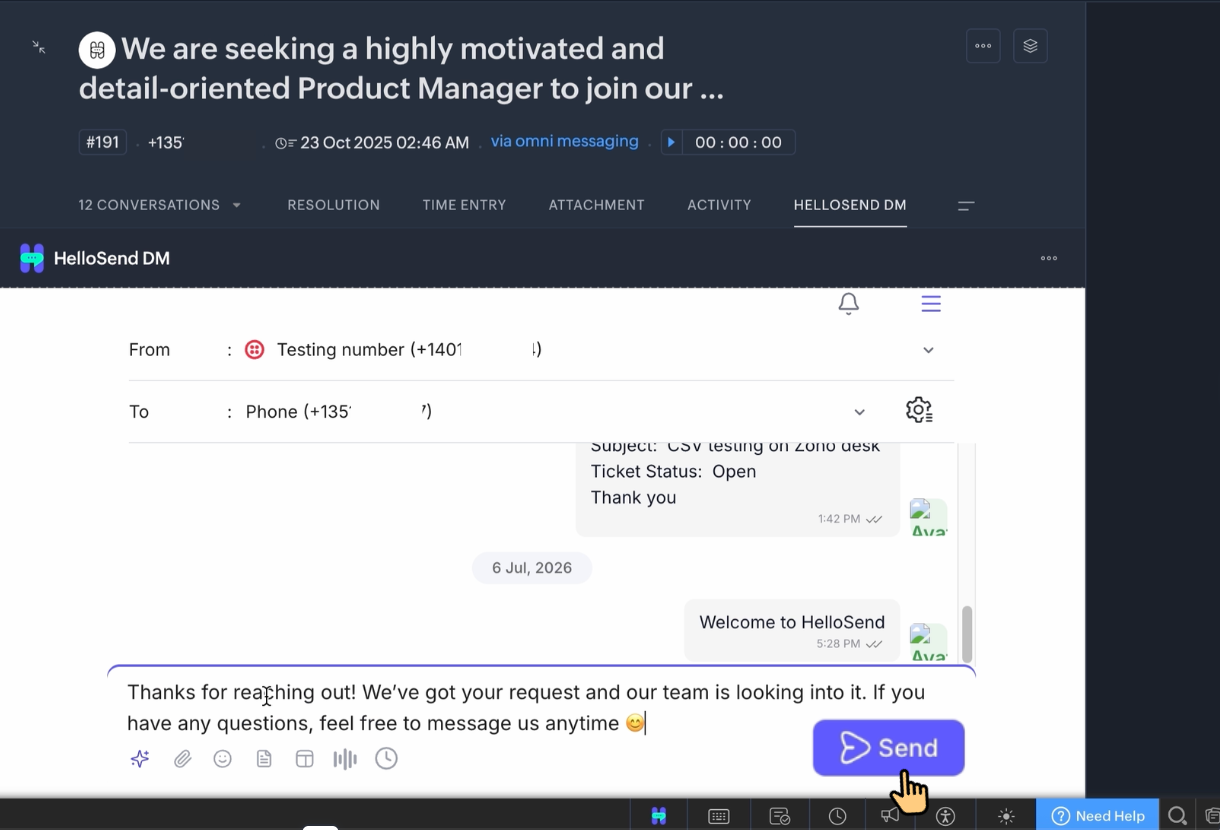
Choose the From Number you want to use to send the message.
The From Number is the phone number or messaging number connected to your HelloSend account. If multiple numbers are available, select the appropriate number based on your team, department, location, or communication requirements.
Selecting the correct From Number helps ensure that the message is sent through the appropriate communication channel.
Step 4: Verify the Customer's Phone Number
The customer's phone number will be automatically populated in the To Number field based on the customer information available in Zoho Desk.
Before sending the message, verify that the correct phone number has been selected.
If multiple phone number fields are available for the customer, you can choose the appropriate number you want to use for the conversation.
Step 5: Enter Your Message
Type your message in the message box.
You can create a personalized message based on the customer's question, support request, ticket status, or other communication requirements.
Personalized one-on-one messaging helps support agents provide more relevant responses and create a better customer experience.
Step 6: Select a Message Template
Instead of writing a new message every time, you can select an existing message template.
Message templates are useful for frequently sent communications such as:
- Ticket acknowledgements
- Support updates
- Appointment reminders
- Follow-up messages
- Issue resolution notifications
- Customer service updates
Using templates helps agents save time and maintain consistent communication across the support team.
After selecting a template, review the message and make any necessary changes before sending it to the customer.
Step 7: Review Your Message
Before sending the message, review the following information:
- Selected From Number
- Customer's To Number
- Message content
- Selected template, if applicable
Make sure all the information is correct and that the message is ready to be sent.
Step 8: Send the Message
Once everything looks correct, click Send.
HelloSend will send the message to the customer directly from the Zoho Desk ticket.
This allows support agents to quickly communicate with customers while continuing to manage their support activities within Zoho Desk.
Step 9: View Conversation History in Zoho Desk
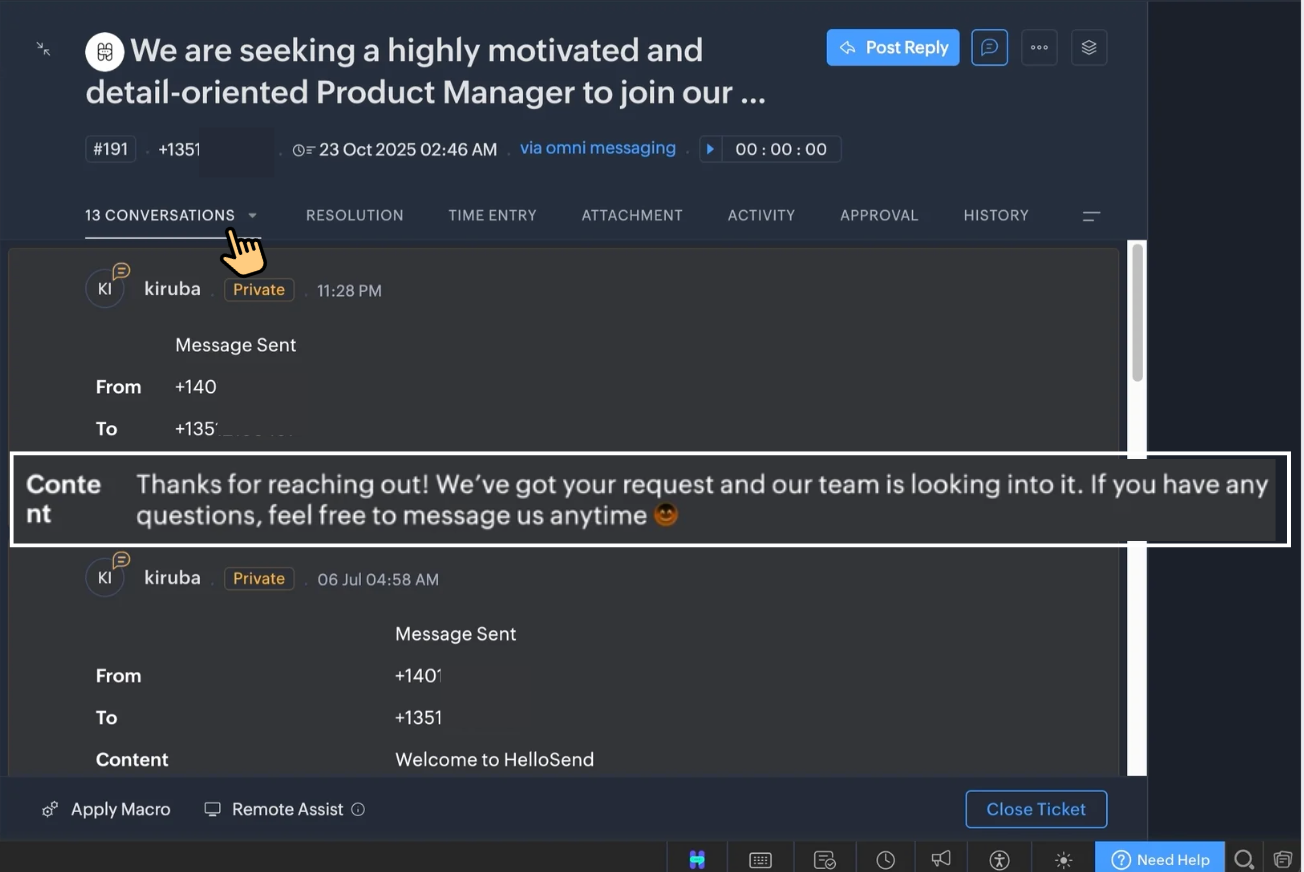
After the message is sent successfully, the conversation will be automatically recorded and displayed within the Zoho Desk ticket.
Agents can view the complete conversation history, track customer interactions, and continue follow-up communication directly from the ticket. This helps support teams maintain a complete record of customer conversations and provide better support experiences..
Benefits of One-on-One Messaging with HelloSend for Zoho Desk
-
Communicate Directly from Zoho Desk: Send customer messages directly from Zoho Desk tickets without switching between multiple messaging platforms.
-
Save Time for Support Teams: Quickly access customer details, create messages, and respond faster from the same support workspace.
-
Personalize Customer Communication: Send relevant one-on-one messages based on customer requests, ticket status, and support needs.
-
Use Message Templates: Create faster responses with predefined templates while maintaining consistent communication across your support team.
-
Manage Multiple Sending Numbers: Choose the right From Number for different teams, departments, or business communication requirements.
-
Improve Customer Response Times: Deliver quick updates directly from Zoho Desk and provide a better customer support experience.
-
Keep Conversations Organized: Manage customer tickets and conversations in one place without moving between different applications.
Conclusion
HelloSend for Zoho Desk helps customer support teams simplify one-on-one customer communication by allowing agents to send personalized messages directly from Zoho Desk tickets.
With features such as automatic customer number selection, multiple sending numbers, personalized messaging, and reusable message templates, HelloSend helps agents communicate more efficiently and provide faster customer support.
By bringing customer messaging directly into Zoho Desk, HelloSend helps businesses reduce manual work, improve response times, and keep customer communication connected to their everyday support workflow.




.webp)
