Step 1: Connect Twilio WhatsApp Channel
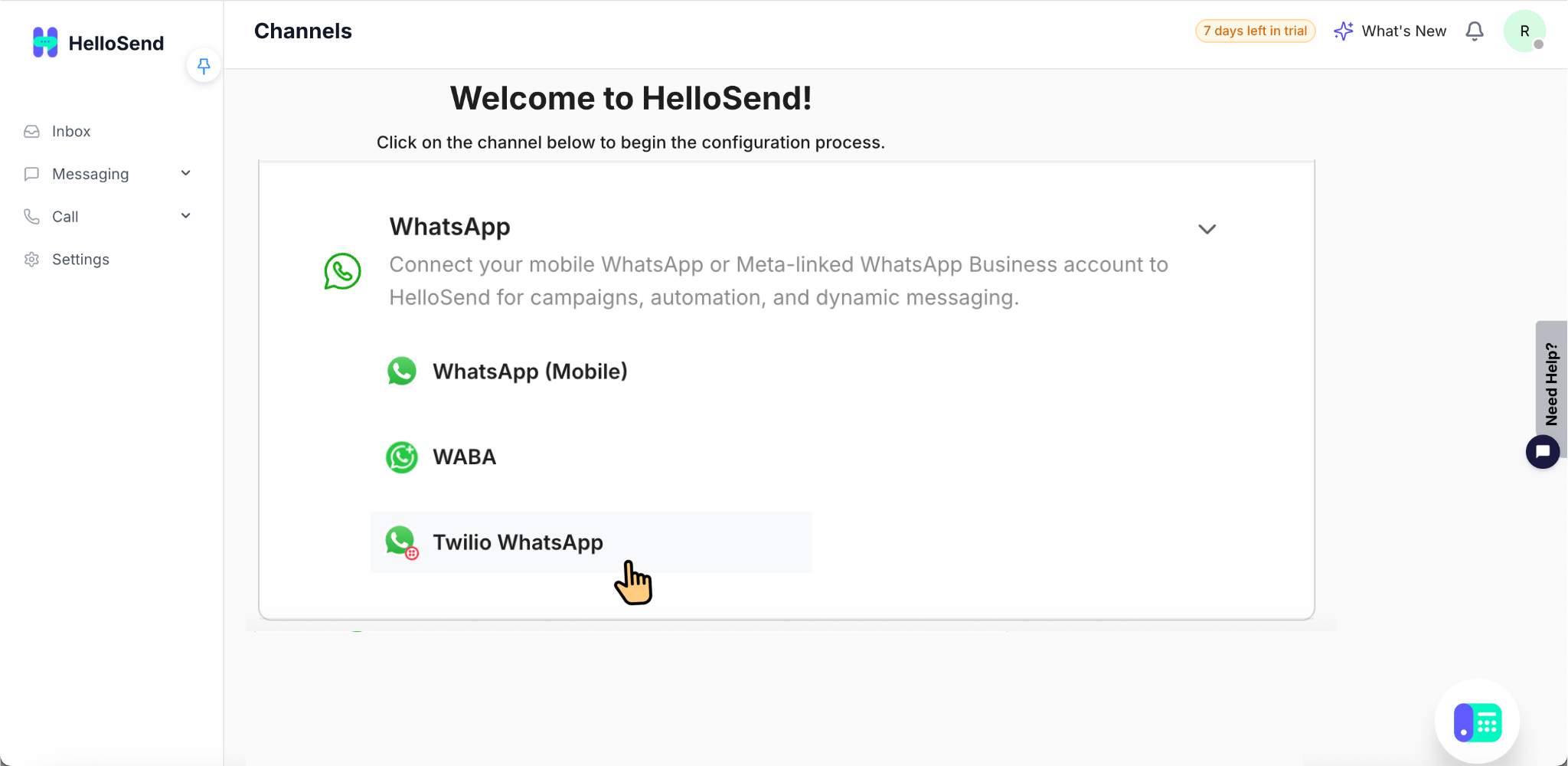
- Log in to your HelloSend account and navigate to Settings → Channels → WhatsApp. This section allows you to connect, manage, and configure your WhatsApp Business communication channels for sending and receiving messages through HelloSend.
- Inside the WhatsApp channel settings, select Twilio WhatsApp as your WhatsApp provider. This option allows you to connect your Twilio WhatsApp Business API account with HelloSend for managing WhatsApp communication directly from the Inbox.
-
Enter your:
- Twilio Account SID
- Twilio Auth Token
After entering your Twilio Account SID and Auth Token, click Authorize to securely connect your Twilio WhatsApp Business API account with HelloSend. Once authorized successfully, HelloSend will be able to access and fetch your connected WhatsApp Business numbers from Twilio.
- Once the Twilio account is authorized successfully, HelloSend will automatically fetch all WhatsApp Business numbers connected to your Twilio WhatsApp Business API account. These numbers will then be available for activation and use inside HelloSend for customer communication.
- Enable the required WhatsApp Business numbers using the toggle switch. You can activate one or multiple numbers based on your business communication needs. Once enabled, the selected WhatsApp numbers will be available inside HelloSend Inbox for sending and receiving customer messages.
- Your Twilio WhatsApp channel is now connected successfully with HelloSend. The enabled WhatsApp Business numbers are ready to use for sending and receiving customer messages directly from the HelloSend Inbox.
Step 2: Add Twilio WhatsApp Templates
Before using WhatsApp templates inside HelloSend, you must first create and get the template approved in your Twilio WhatsApp Business account. WhatsApp templates are required when initiating conversations with customers outside the 24-hour customer reply window.
Follow the steps below to create a WhatsApp template in Twilio.
Create WhatsApp Template in Twilio
- Open your Twilio account and log in to the Twilio Console using your Twilio credentials. The Twilio Console is used to manage your WhatsApp Business API account, messaging services, approved templates, and communication settings required for Twilio WhatsApp integration with HelloSend.
- The Twilio Console is where you manage your WhatsApp Business API account, messaging services, templates, and communication settings.
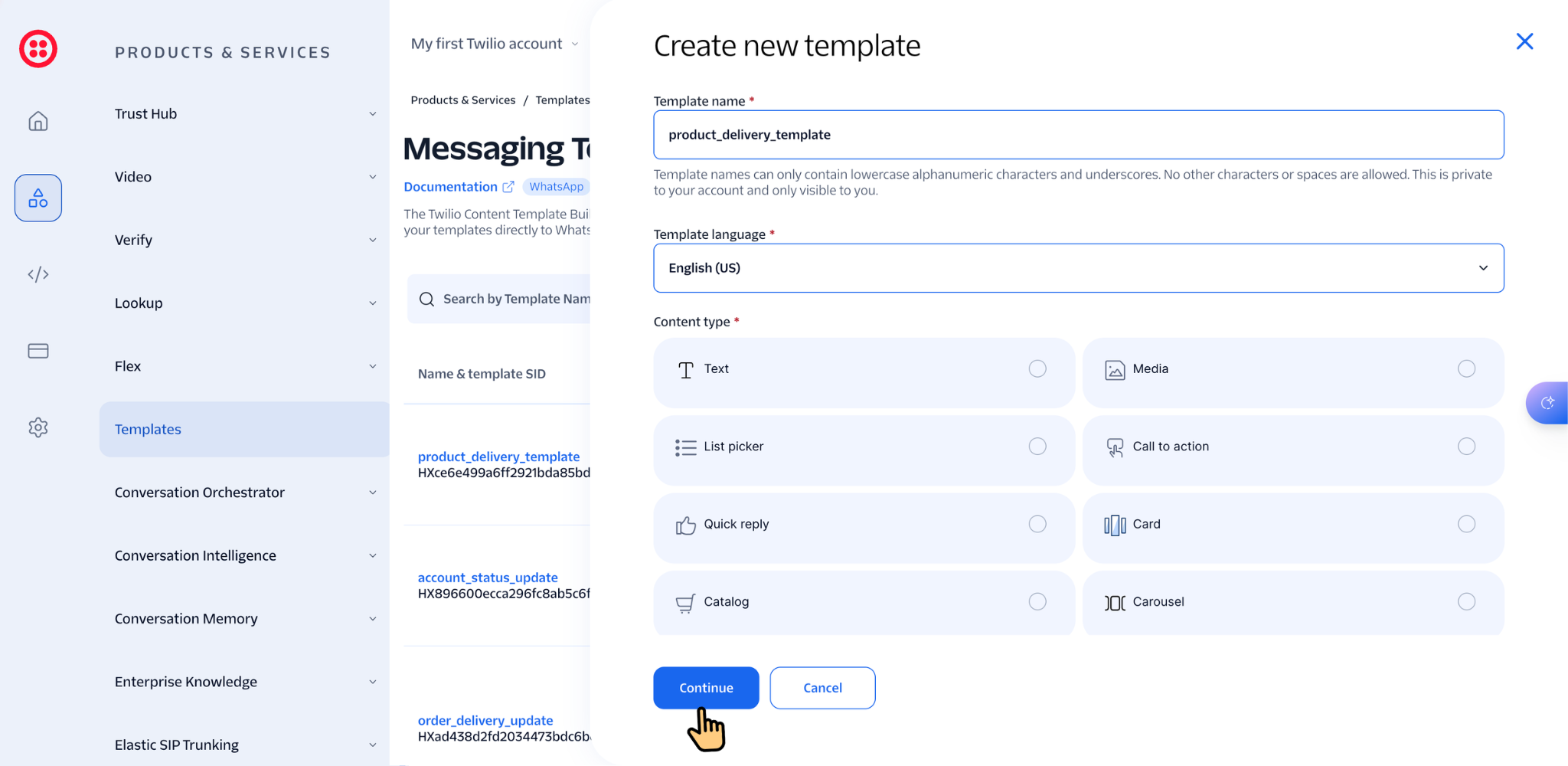
- From the Twilio Console navigation menu, go to Messaging → Content Template Builder. This section allows you to create, manage, review, and submit WhatsApp Business templates for approval before using them inside HelloSend.
- Click Create New Template to start creating a new WhatsApp Business template in Twilio. This will open the template configuration page where you can define the template category, language, message content, variables, media, and interactive button options required for your business communication.
- The template creation screen allows you to configure your WhatsApp Business template by setting the template category, language, message content, variables, media attachments, and interactive button options based on your business communication requirements.
- Select the appropriate WhatsApp template category based on your communication purpose. Choosing the correct category helps WhatsApp review and approve the template properly according to the type of business message you plan to send to customers.
- Common WhatsApp template categories include:
- Marketing
- Utility
- Authentication
- Enter the required template details including the template name, language, message content, and any required dynamic variables. Variables such as {{1}}, {{2}}, or {{3}} can be used to personalize WhatsApp messages with customer-specific information like names, appointment dates, order details, or tracking information.
- Review the WhatsApp template details carefully before submitting it for approval. Check the template name, category, language, message content, variables, and any added media or buttons to make sure everything is correct. A proper review helps avoid template rejection and ensures the template is ready for use in HelloSend after approval.
- Once all template details are reviewed and configured correctly, click Submit for Approval to send the WhatsApp template for review through Twilio and WhatsApp. The template will be reviewed based on WhatsApp Business policies, and only approved templates can be used for customer communication inside HelloSend.
- Once the WhatsApp template is approved in Twilio, it will automatically become available inside HelloSend while adding Twilio WhatsApp templates. You can then select the approved template, configure it in HelloSend, and start using it for customer communication directly from the Inbox.
Add Twilio WhatsApp Template in HelloSend
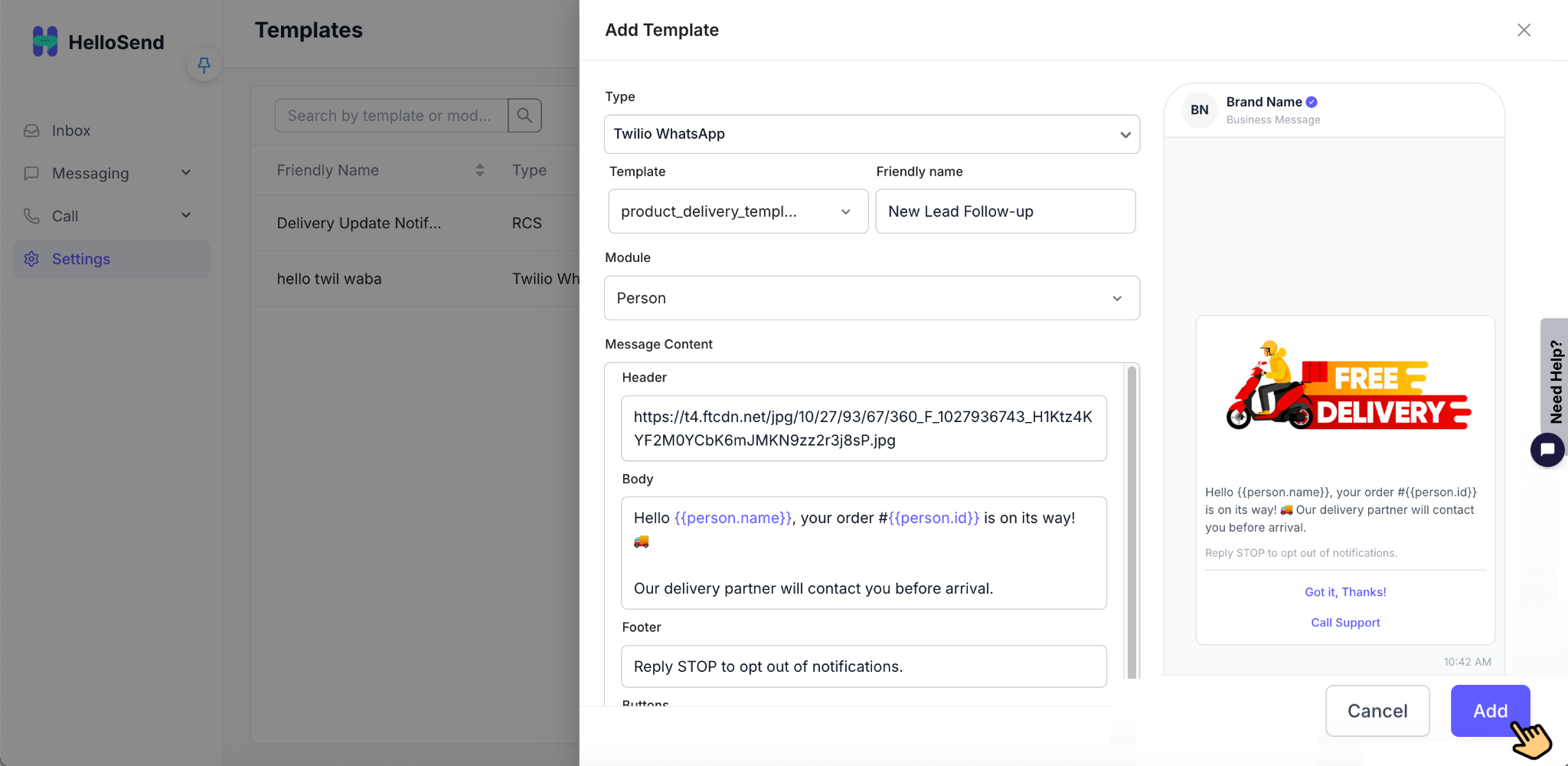
- Log in to your HelloSend account and navigate to: Settings → Templates → Add Template
- Inside the Add Template page, locate the Type dropdown field and choose Twilio WhatsApp. Selecting this option connects the template with your authorized Twilio WhatsApp Business API account and allows HelloSend to fetch your approved WhatsApp templates directly from Twilio for customer communication.
- After selecting Twilio WhatsApp as the template type, HelloSend will automatically display the list of approved WhatsApp templates available in your connected Twilio account. Choose the required template that you want to use for customer communication. Only templates approved by WhatsApp through Twilio will appear in this list and can be used for sending WhatsApp messages.
- Enter a Friendly Name for the WhatsApp template to help your team easily identify and use the correct template inside HelloSend. The friendly name is used internally for quick reference and better template management. Use simple and descriptive names such as Appointment Reminder, Welcome Message, or Payment Follow-up.
- Select the required CRM Module where the WhatsApp template will be used. Choosing the correct CRM module helps organize customer communication properly and ensures the template is available for the relevant records inside your CRM workflow. Common modules may include Leads, Contacts, Deals, or other supported CRM modules.
- Carefully review all the template details before creating the template. Verify that the correct WhatsApp template is selected, the friendly name is accurate, and the appropriate CRM module is chosen. Reviewing the information properly helps avoid configuration issues and ensures the template is ready for customer communication inside HelloSend.
- Once all the template details are reviewed and configured correctly, click Add to create the WhatsApp template inside HelloSend. After the template is added successfully, it will be available for sending WhatsApp messages directly from the HelloSend Inbox using your connected Twilio WhatsApp Business number.
Note: WhatsApp templates must first be created and approved inside your Twilio WhatsApp Business account before they can be used in HelloSend.
Step 3: Send WhatsApp Messages
- Go to the Inbox section inside HelloSend to manage your customer conversations. The Inbox allows you to send and receive WhatsApp messages, view conversation history, and communicate with customers directly using your connected Twilio WhatsApp Business numbers.
- Open an existing customer chat from the Inbox or start a new conversation to begin communicating through WhatsApp. This allows your team to manage ongoing customer interactions and send new WhatsApp messages directly from HelloSend.
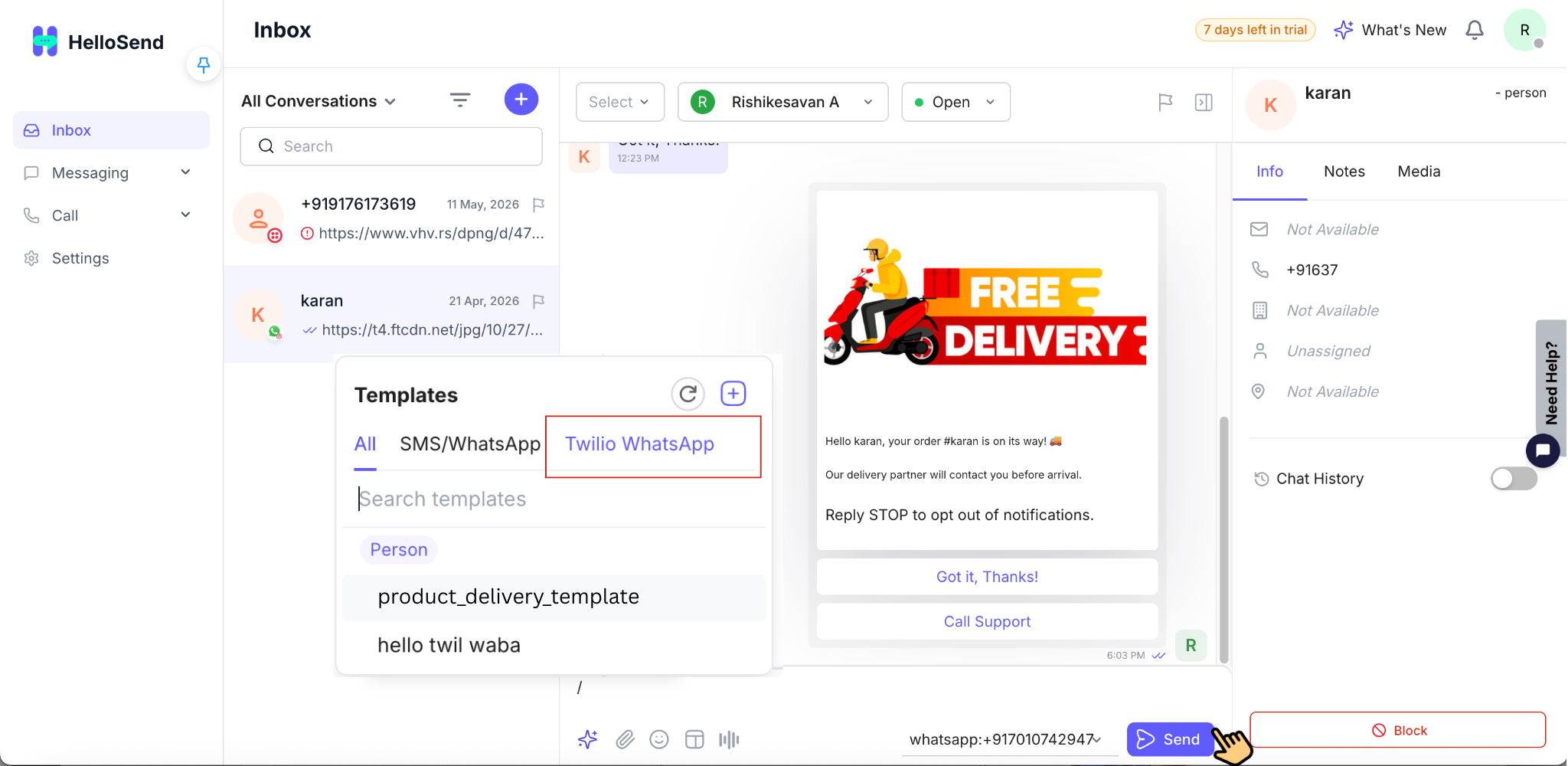
- Select the connected Twilio WhatsApp number you want to use for sending the message. If multiple WhatsApp numbers are connected to HelloSend, choose the correct business number based on the team, department, or customer communication purpose.
- Choose an approved WhatsApp template for the first outbound message. WhatsApp Business API requires businesses to use approved templates when initiating conversations with customers outside the 24-hour messaging window. Select the appropriate template based on your communication purpose before sending the message.
- After selecting the WhatsApp template and connected Twilio WhatsApp number, click send to deliver the message to the customer. The message will be sent directly through your Twilio WhatsApp Business API account and the conversation will appear inside the HelloSend Inbox for further communication.
- Once the customer replies, you can continue the conversation freely within the 24-hour moving conversation window.
Benefits of Twilio WhatsApp Integration with HelloSend
Send WhatsApp Messages Directly from HelloSend
Connect your Twilio WhatsApp Business API account and send WhatsApp messages directly from HelloSend without switching between multiple platforms. Your team can manage customer communication from a single workspace, making daily communication faster and more efficient.
Manage Multiple WhatsApp Numbers in One Place
HelloSend allows businesses to connect and manage multiple Twilio WhatsApp Business numbers from one centralized platform. This is especially useful for businesses with multiple departments, teams, regions, or support channels using separate WhatsApp numbers.
Use Approved WhatsApp Templates Easily
Easily sync and use approved WhatsApp templates from your Twilio account inside HelloSend. Send template messages for customer notifications, appointment reminders, order updates, marketing communication, support responses, and follow-ups quickly and professionally.
Centralize Customer Conversations Inside Inbox
All WhatsApp conversations are managed inside the HelloSend shared Inbox, allowing teams to view, track, and respond to customer messages from one centralized location. This improves collaboration and ensures conversations are not missed.
Improve Customer Engagement and Response Times
Respond to customer inquiries faster using centralized messaging workflows and shared team access. Faster replies help improve customer satisfaction, increase engagement, and create a better overall communication experience.
Streamline Business Communication Workflows
Twilio WhatsApp integration simplifies business communication by combining WhatsApp messaging, templates, customer conversations, and CRM workflows into a single platform. This reduces manual work and helps teams manage communication more efficiently.
Better Team Collaboration
Multiple team members can access and manage customer conversations together from the shared Inbox. This improves internal coordination and ensures customer queries are handled quickly by the right team member.
Seamless CRM Communication Management
Integrate WhatsApp communication with your CRM workflow to maintain organized customer interactions, improve tracking, and keep communication history connected with customer records.
Professional Customer Communication
Use verified WhatsApp Business messaging with approved templates to deliver more professional and trusted communication experiences for customers.
Scalable Messaging Solution for Growing Businesses
Whether you manage a small support team or large-scale customer communication operations, Twilio WhatsApp integration with HelloSend helps businesses scale communication workflows efficiently while maintaining organized customer engagement.
Conclusion
Twilio WhatsApp integration with HelloSend helps businesses simplify customer communication by combining WhatsApp messaging, templates, and conversation management into one unified platform. With Twilio WABA connected to HelloSend, teams can deliver faster, more professional, and more organized customer communication experiences.