Step-by-Step Guide to Integrate HelloSend with GoHighLevel
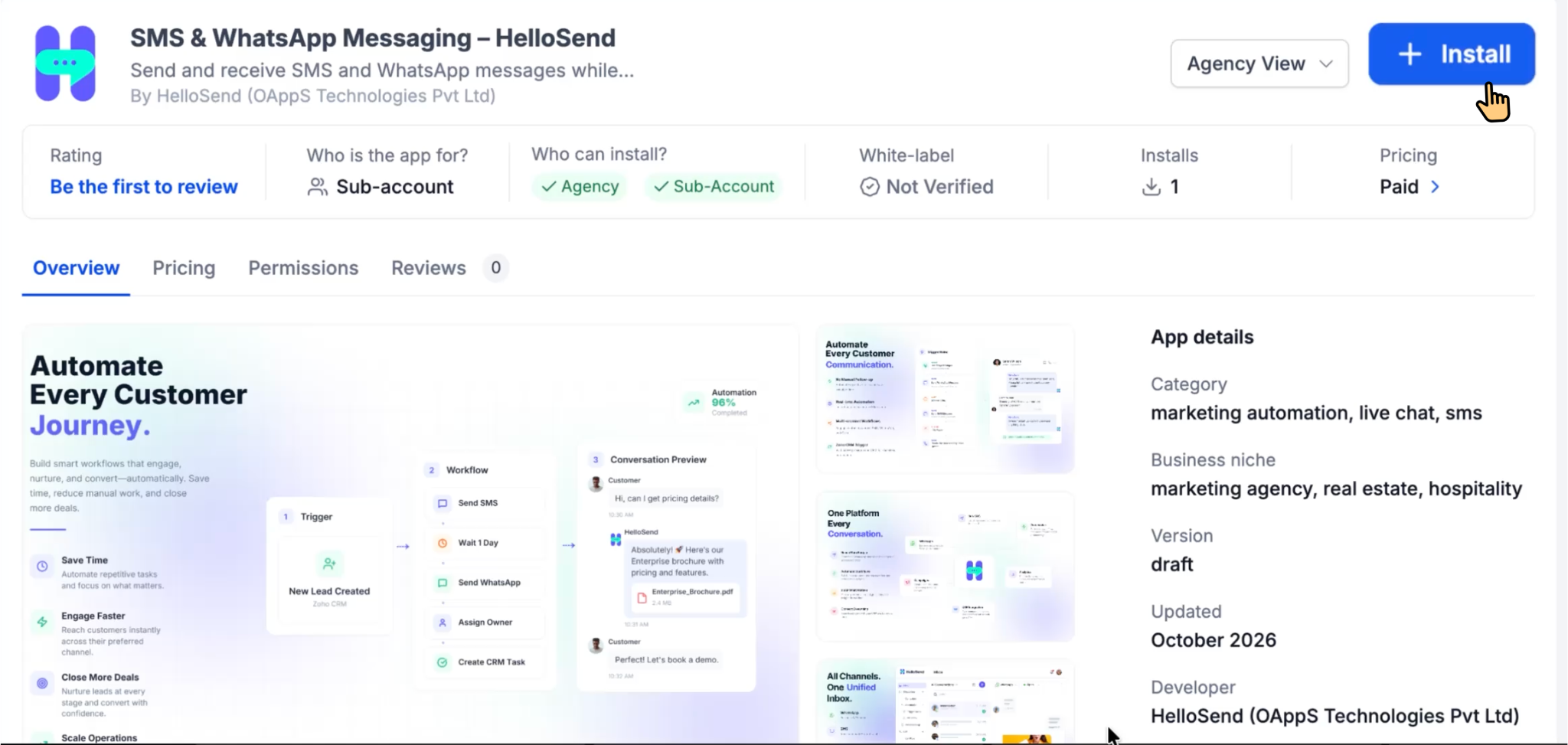
Install HelloSend from the GoHighLevel Marketplace
- Log in to your GoHighLevel account.
- Navigate to the Marketplace Apps section.
- Search for HelloSend in the Marketplace search bar.
- Select HelloSend from the search results.
- Click Install to begin the installation process.
- Select a Sub-Account where you want to install HelloSend.
- Click Allow & Install to authorize the installation.
- Choose your preferred Subscription Plan and complete the installation process.
- Once the installation is complete, you will be redirected to the HelloSend Get Started page.
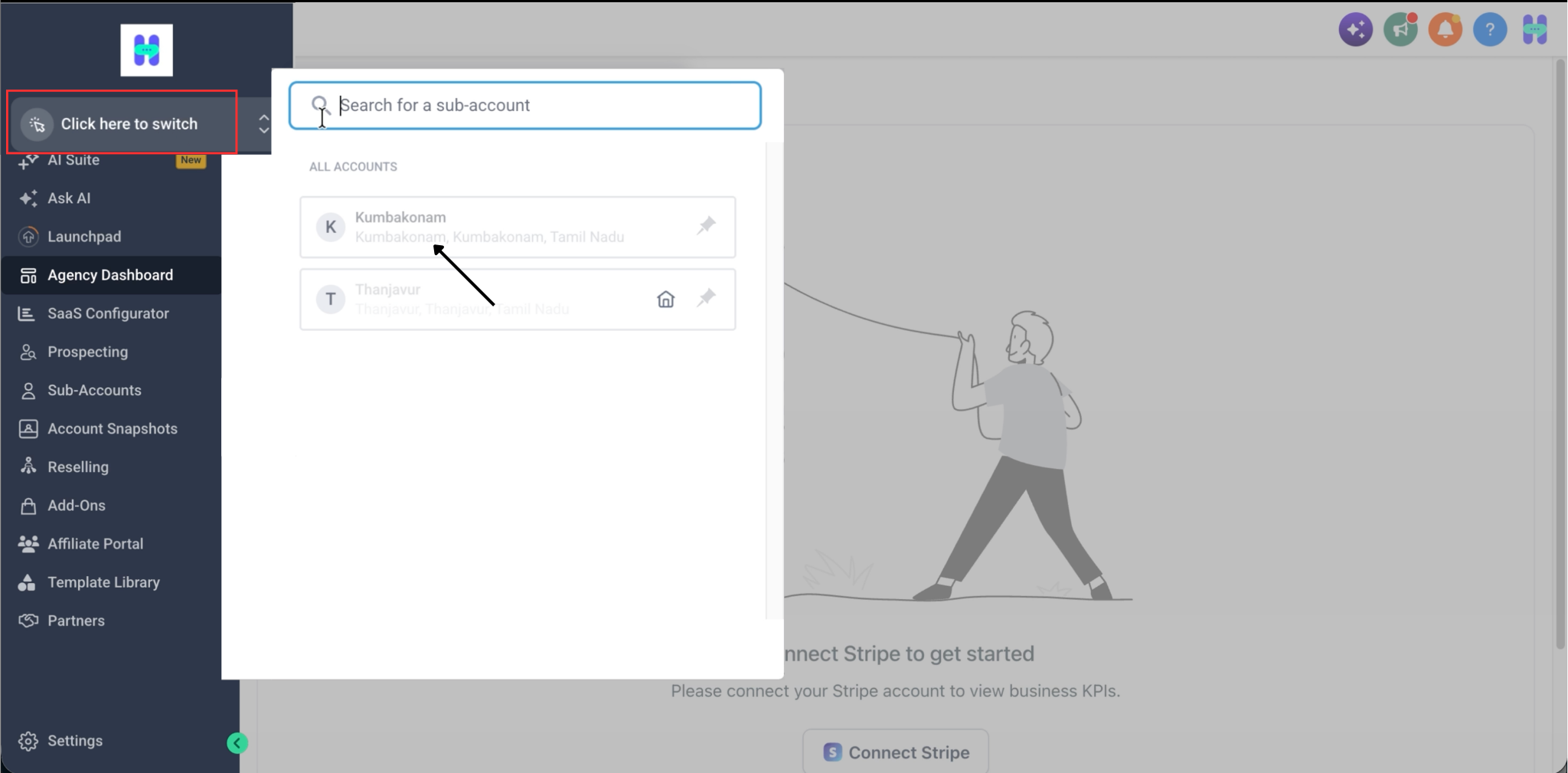
- Click Go to GoHighLevel to return to your GoHighLevel account.
- Select the Sub-Account you previously chose during installation.
- Find HelloSend in the left sidebar and click it to open the application.
Connect Your Messaging Channel
After connecting HelloSend with GoHighLevel, the next step is to configure a messaging channel . HelloSend supports SMS and WhatsApp messaging through compatible service providers.
- Open HelloSend from the GoHighLevel sidebar.
- Navigate to Settings → Channels .
- Select the messaging channel you want to connect.
- Follow the setup instructions for your selected channel.
- Once the connection is successful, your messaging number will be available in HelloSend.
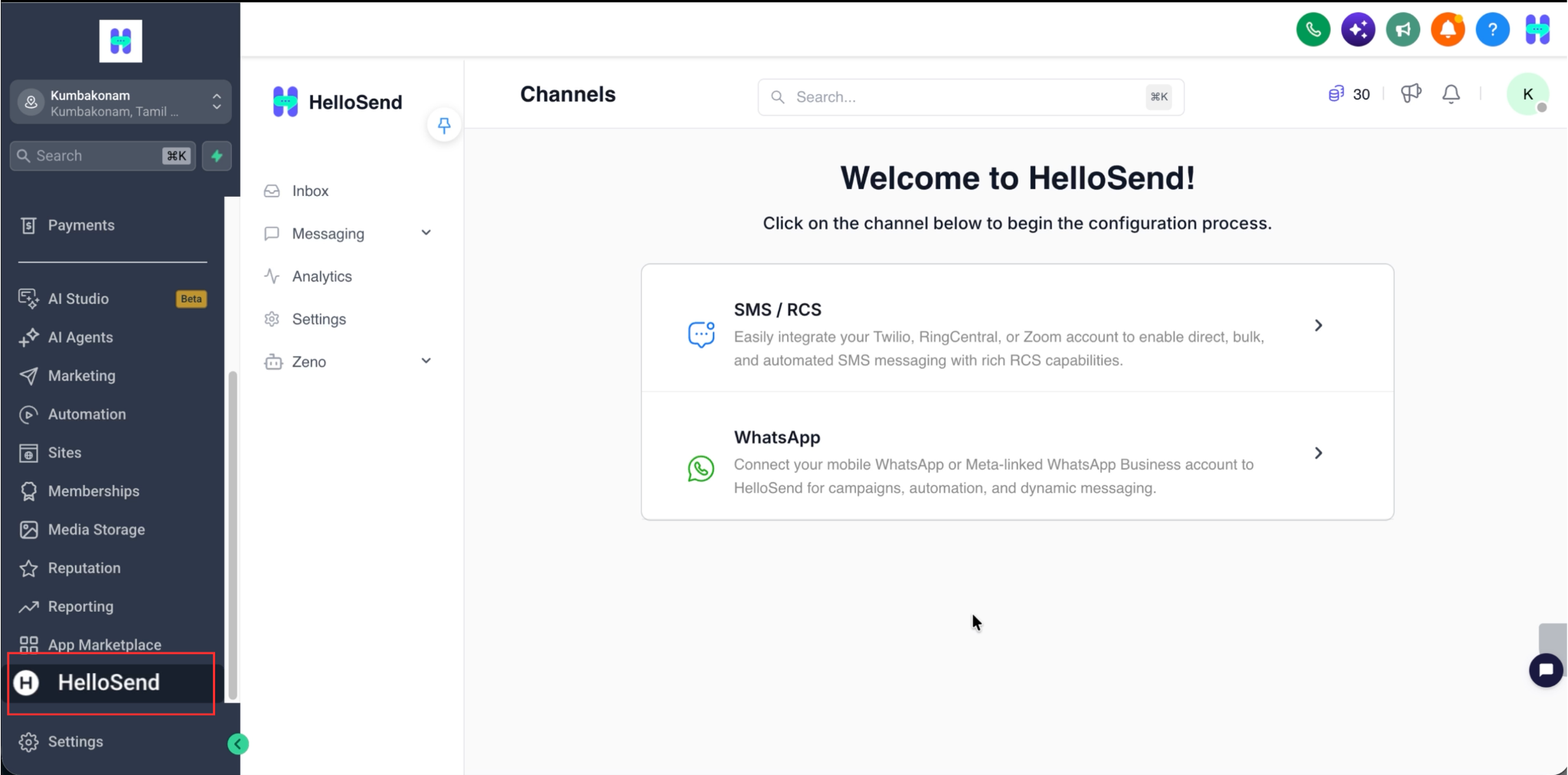
You can configure the following channels based on your communication requirements.
Option A: Connect an SMS Channel
To send and receive SMS messages, connect a supported SMS service provider such as Twilio .
- Navigate to Settings → Channels → SMS .
- Select your SMS service provider, such as Twilio.
- Enter the required provider credentials, including your Account SID and Auth Token for Twilio.
- Complete the authorization process.
- Configure or select the phone number you want to use for messaging.
- Once connected, your SMS number will be available for sending and receiving messages.
Note: You must have an active account with your selected SMS provider and a phone number enabled for SMS messaging.
Option B: Connect WhatsApp Personal
You can connect your existing WhatsApp number with HelloSend using a QR code .
- Go to Settings → Channels → WhatsApp .
- Select WhatsApp and click Connect via QR Code .
- A QR code will appear on your screen.
- Open WhatsApp on your mobile device.
- Navigate to Linked Devices → Link a Device .
- Scan the QR code displayed in HelloSend.
- Once the connection is established, your WhatsApp number will be connected to HelloSend.
You can now manage your WhatsApp conversations directly through the HelloSend Inbox.
For detailed instructions, refer to the Connect Mobile WhatsApp with HelloSend guide.
Option C: Connect WhatsApp Business API (WABA)
For businesses using WhatsApp Business API , HelloSend allows you to connect your WhatsApp Business account through Meta .
- Navigate to Settings → Channels → WhatsApp .
- Select the WABA option.
- Click Connect via Facebook .
- Log in with your Facebook account associated with your Meta Business Portfolio .
- Select or configure your WhatsApp Business Account.
- Choose the phone number you want to connect.
- Complete the authorization and verification steps.
- Once successfully connected, your WhatsApp Business number will be available in HelloSend.
Note: Ensure that your WhatsApp Business Account and phone number meet Meta's eligibility and verification requirements .
Access the HelloSend Inbox
Once your messaging channel is connected, you can access the HelloSend Inbox to manage your customer conversations.
- Open HelloSend from the GoHighLevel sidebar.
- Click Inbox from the HelloSend navigation menu.
- View your incoming and outgoing SMS and WhatsApp conversations.
- Select a conversation to read previous messages and respond to the customer.
- Use the message input area to type your response and click Send .
The HelloSend Inbox provides a centralized workspace for managing customer conversations, helping your team respond quickly and maintain organized communication.
Send a Test Message
Before using HelloSend for regular customer communication, send a test message to confirm that your messaging channel is configured correctly.
- Open the HelloSend Inbox.
- Start a new conversation.
- Select your connected SMS or WhatsApp number.
- Enter the recipient's phone number.
- Type a test message in the message input area.
- Click Send.
- Verify that the message was successfully delivered.
- Once delivered, the message will appear in the corresponding contact's conversation history in GoHighLevel.
- Navigate to the Contacts section in GoHighLevel.
- Open the contact to whom you sent the message.
- You can view the sent message in the Conversations section of the contact's record..
You can also reply from the recipient's device to confirm that incoming messages are received correctly.
Once the test is successful, your HelloSend setup is ready for customer communication.
Send Messages to Multiple GoHighLevel Contacts
HelloSend also allows you to communicate with multiple customers using messaging campaigns.
Campaigns are useful when you need to send announcements, reminders, promotional messages, service updates, or other communications to several contacts.
How to Create a Campaign
- Open HelloSend.
- Go to the Campaigns section.
- Click the option to create a new campaign.
- Enter a campaign name.
- Select the required messaging channel.
- Choose the contacts and the appropriate phone number field.
- Choose All Contacts
- Enter your message or select a saved template.
- Preview the message and verify the selected recipients.
- Review the campaign details and make any necessary changes.
- Send immediately or schedule the campaign for a later date and time.
Before sending bulk SMS or WhatsApp messages, make sure your recipients have provided the appropriate consent to receive communications from your business.
Following applicable messaging and opt-in requirements can help improve message deliverability and customer experience.
Automate Messages with Trigger Rules
HelloSend Trigger Rules help you automatically respond to incoming SMS and WhatsApp messages based on predefined conditions.
You can define when a rule should run and what action HelloSend should perform, helping your team reduce manual work and respond to customers faster.
A Trigger Rule can include:
- A Trigger that starts the rule.
- Optional Conditions to control when the rule should run.
- An Action such as sending an automatic response.
How to Create a Trigger Rule
- Open HelloSend.
- Go to Messaging → Automation → Trigger Rules.
- Click Create Rule.
- Select the trigger that should start the rule.
- Add conditions if required.
- Configure the action to be performed.
- Review the rule settings.
- Save the rule and enable the Active toggle.
Once enabled, the rule will automatically perform the configured action whenever the selected trigger and conditions are met.
Example
You can create a Trigger Rule to automatically reply when a customer sends a specific message.
For example:
- A customer sends an SMS or WhatsApp message.
- HelloSend checks whether the configured rule conditions are met.
- HelloSend automatically performs the configured action, such as sending a reply.
Trigger Rules help your team provide faster and more consistent responses while reducing repetitive manual work.
Automate Messages Using an External Webhook
HelloSend's External Webhook trigger allows GoHighLevel or another external application to start an automation when a specific event occurs.
For example, when a customer submits a form, makes a booking, or completes a purchase on your GoHighLevel website, GoHighLevel can send the event data to HelloSend. HelloSend then processes the webhook and performs the configured action.
Common use cases include:
- Send a confirmation after a form submission.
- Send booking or appointment reminders.
- Notify customers about orders or payments.
- Send SMS or WhatsApp updates automatically.
How to Configure an External Webhook
- Open HelloSend and create a new Trigger Rule.
- Select External Webhook as the trigger.
- Configure GoHighLevel or your external application to send event data to HelloSend.
- Choose From Webhook Payload to use the customer's phone number included in the incoming webhook.
- Add conditions such as country or run schedule, if required.
- Add an action such as an automated SMS or WhatsApp message.
- Review the configuration and activate the Trigger Rule .
Once enabled, HelloSend will automatically process the webhook and run the configured messaging workflow whenever the selected GoHighLevel event occurs.
Example
- A customer submits an enquiry form on your GoHighLevel website.
- GoHighLevel sends the customer details to HelloSend through a webhook.
- HelloSend reads the customer's phone number from the webhook payload.
- HelloSend automatically sends the configured SMS or WhatsApp confirmation.
External Webhooks help connect your GoHighLevel events with HelloSend so you can automate timely customer communication without manual follow-up.
Monitor Trigger Rules with Logs
HelloSend Trigger Rules Logs help you track how your GoHighLevel-related automations are performing and understand what happened during each execution.
You can use the logs to verify whether a rule was completed successfully, skipped, or stopped because of an issue.
How to Review Trigger Rules Logs
- Open HelloSend.
- Go to Automation → Trigger Rules .
- Select the trigger rule you want to review.
- Click View Logs .
- Review the total runs, success rate, skipped runs, and execution details .
- Open an individual execution to check which steps were completed, skipped, or unsuccessful.
If an automation does not run as expected, the logs can help you identify which step caused the issue and whether the configured conditions or actions were processed correctly.
Example
- A GoHighLevel event triggers a HelloSend automation.
- The Trigger Rule is executed.
- You open View Logs to check the execution status.
- If the message was not sent, review the affected step and reason before updating the rule.
Trigger Rules Logs make it easier to monitor automation performance, troubleshoot issues , and confirm that your GoHighLevel messaging workflows are running correctly.