How to Integrate HelloSend with Zapier for SMS, WhatsApp & Workflow Automation

Overview

Businesses today rely on multiple applications to manage customer relationships, sales pipelines, support requests, appointments, marketing campaigns, and operational workflows. While these systems help teams stay organized, they often create disconnected processes that require manual updates and repetitive tasks. This can lead to delayed responses, inconsistent customer communication, and additional workload for teams.

The HelloSend + Zapier integration helps solve this challenge by connecting HelloSend with more than 7,000 business applications through Zapier's no-code automation platform. By integrating HelloSend with tools such as Zoho CRM, Pipedrive, HubSpot, Salesforce, Shopify, Google Sheets, Slack, Calendly, Typeform, Zendesk, and many others, businesses can automate messaging workflows and ensure customers receive timely, personalized communication at every stage of their journey.

Whether you want to automatically send SMS confirmations, WhatsApp notifications, appointment reminders, support updates, order confirmations, or internal team alerts, Zapier allows you to create powerful workflows without writing code. This guide explains everything you need to know about connecting HelloSend to Zapier, available triggers and actions, workflow examples, template messaging, troubleshooting, and best practices.

Supported Channels

What Can You Do with HelloSend + Zapier?

The HelloSend Zapier integration enables businesses to automate communication workflows and connect messaging activities with their existing software ecosystem. Instead of manually sending messages or updating records across multiple platforms, Zapier can automatically trigger actions based on real-time events.

With this integration, you can:

  • Automatically send SMS messages when a lead is created in your CRM.
  • Send WhatsApp template messages after form submissions.
  • Deliver appointment reminders before scheduled meetings.
  • Notify internal teams when customers send inbound messages.
  • Create support tickets from incoming SMS conversations.
  • Log communication activities into spreadsheets or CRM systems.
  • Monitor message delivery statuses and automate follow-up actions.
  • Build multi-step workflows involving HelloSend and thousands of third-party applications.

These automations help reduce manual effort, improve response times, and create a better customer experience.

Before You Start

Before setting up the HelloSend Zapier integration, make sure you have the following requirements in place.

HelloSend Account

You must have an active HelloSend account with at least one configured communication channel. Depending on your use case, this may include SMS, WhatsApp Business, MMS, or RCS messaging.

Zapier Account

A Zapier account is required to build and manage automation workflows. The HelloSend integration can be connected to both free and paid Zapier plans, although certain advanced automation features may require a Zapier premium subscription.

API Key Requirement

Zapier connects to HelloSend using a long-lived API key that you generate within the HelloSend application. This API key is different from your login password and allows Zapier to securely communicate with HelloSend on your behalf.

The API key is used to authenticate your HelloSend account and provide access to available triggers, actions, and search functions. Without a valid API key, Zapier cannot access HelloSend data or perform automation tasks within your account.

Step 1: Create an API Key in HelloSend

To connect HelloSend with Zapier, you must first generate an API key inside your HelloSend account. The API key acts as a secure authentication token that allows Zapier to access your HelloSend account and perform approved actions on your behalf.

Unlike your login credentials, API keys are specifically designed for integrations and automation platforms. This ensures a secure and reliable connection between HelloSend and external applications.

How to Create an API Key

  • Log in to your HelloSend account.
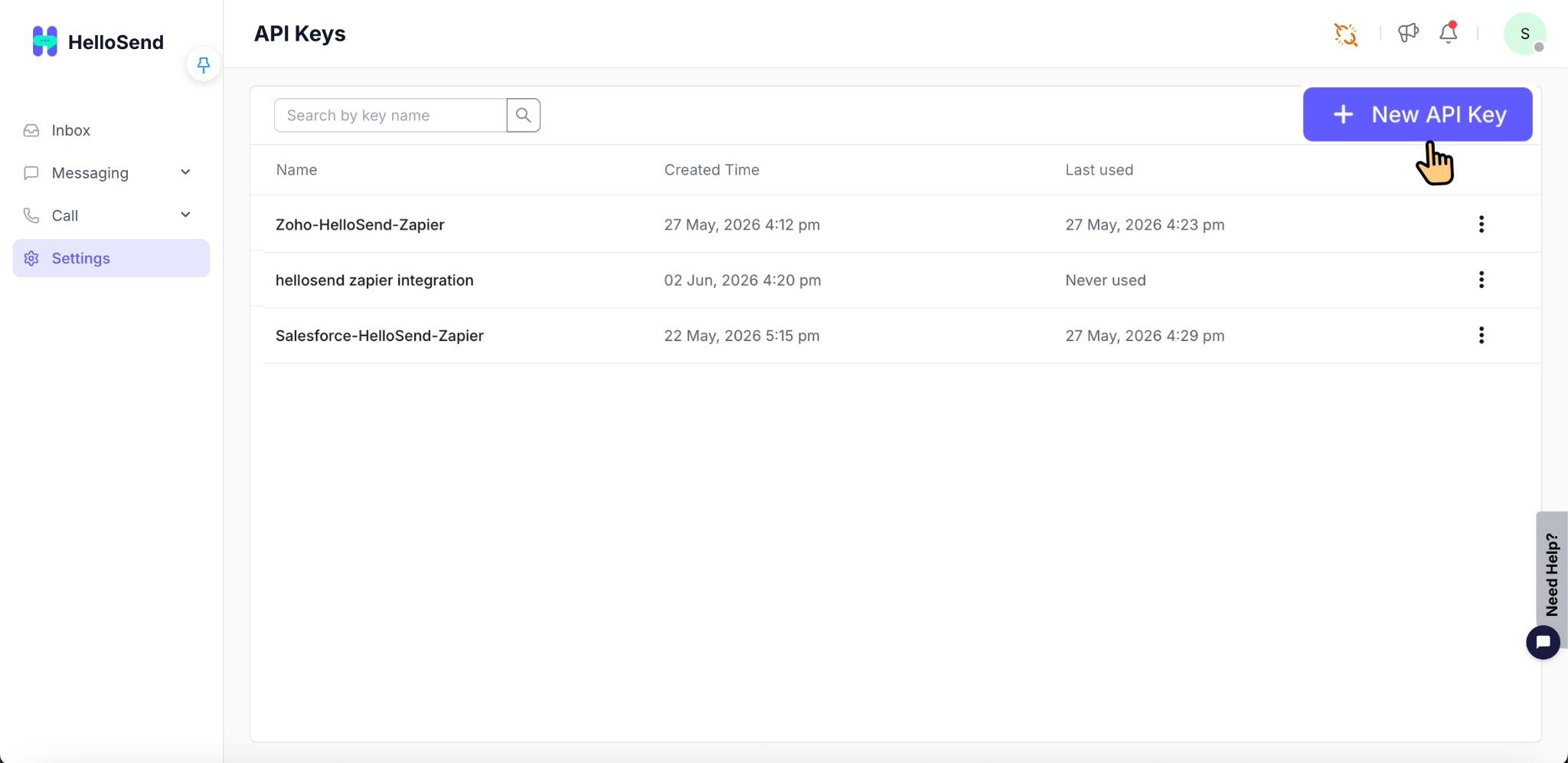
  • Navigate to Settings → API Keys.
  • Click New API Key.
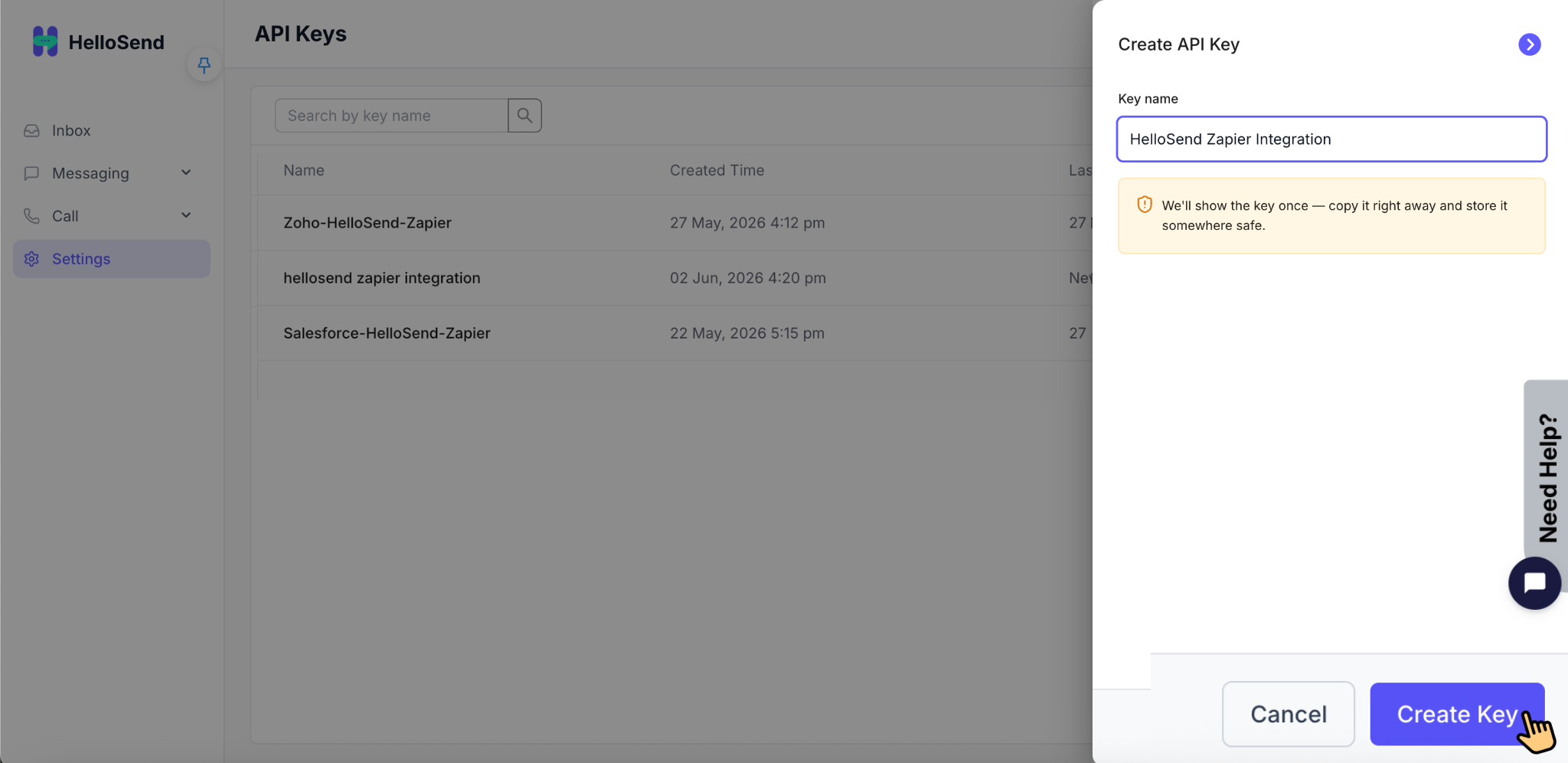
  • Enter a descriptive name such as "Zapier Integration" or "Marketing Automation."
  • Click Create.
  • Copy the generated API key and store it securely.
Important Security Information

The API key is displayed only once during creation. After the popup window is closed, the full key cannot be viewed again. If the key is lost, you must create a new one.

Treat your API key like a password. Anyone with access to the key may be able to send messages or retrieve information through your HelloSend account. Never share API keys publicly or store them in unsecured locations.

If you suspect that an API key has been exposed or compromised, revoke it immediately and create a replacement key.

Step 2: Connect HelloSend to Zapier

After creating your API key, the next step is to connect your HelloSend account within Zapier.

Once connected, Zapier will be able to access available HelloSend triggers, actions, and search functions that can be used to build automation workflows.

How to Connect

  • Log in to your Zapier account.
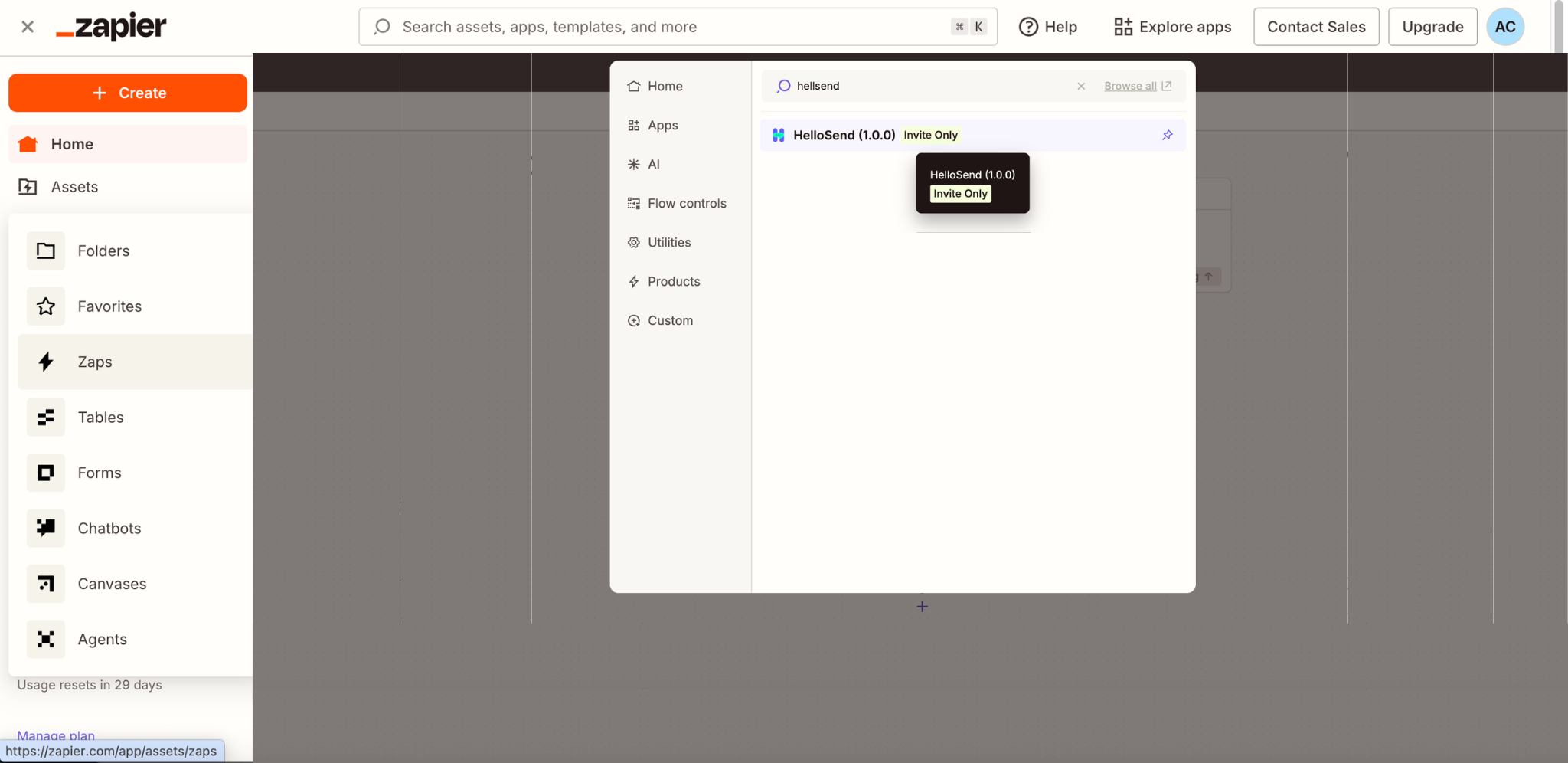
  • Assets > zaps > zap workflows
  • Click Create.
  • Search for HelloSend.
  • Select HelloSend as either a Trigger or Action.
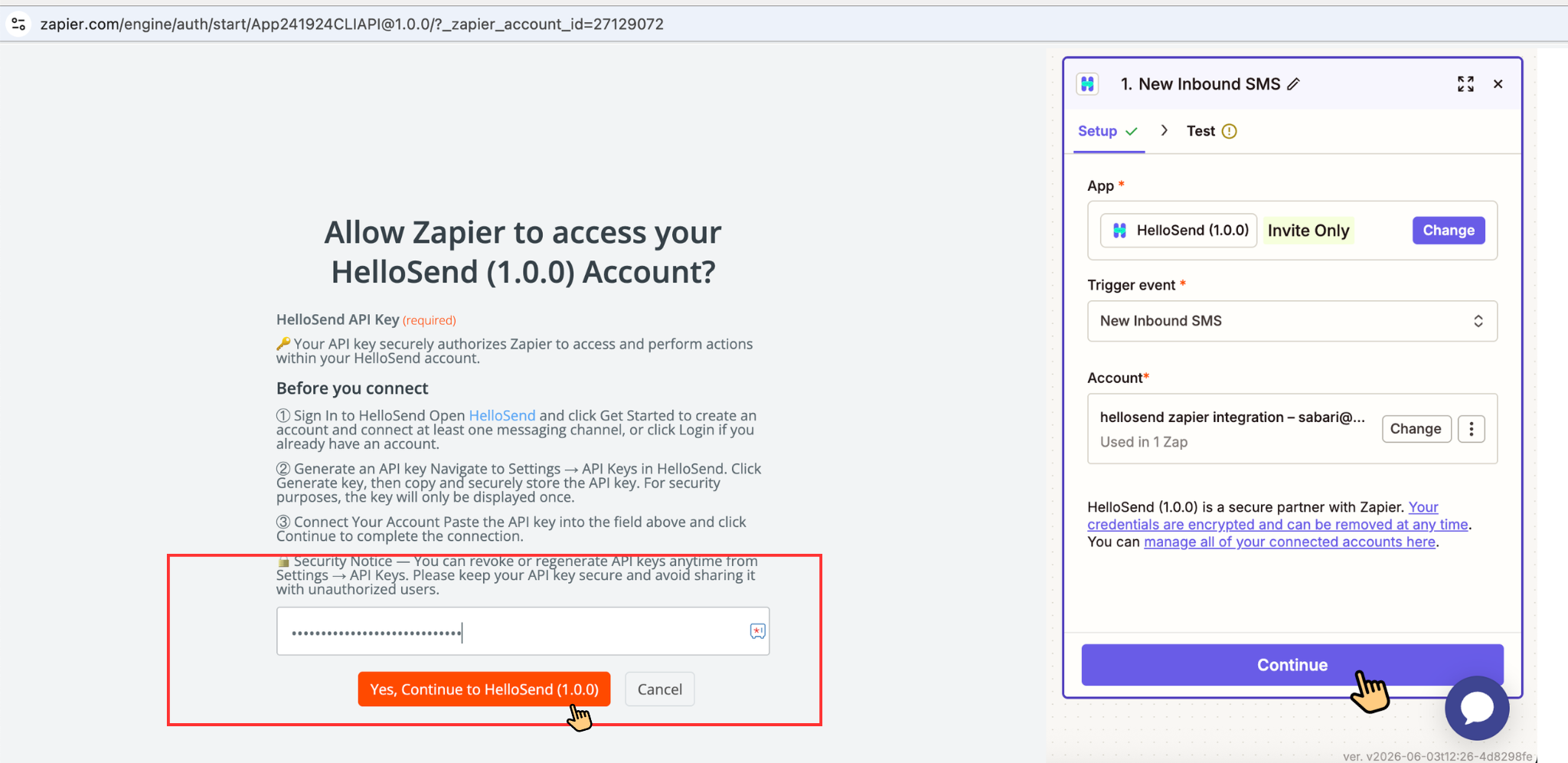
  • Click Sign In to HelloSend.
  • Paste your HelloSend API key.
  • Click Continue.
  • Allow Zapier to verify the connection.
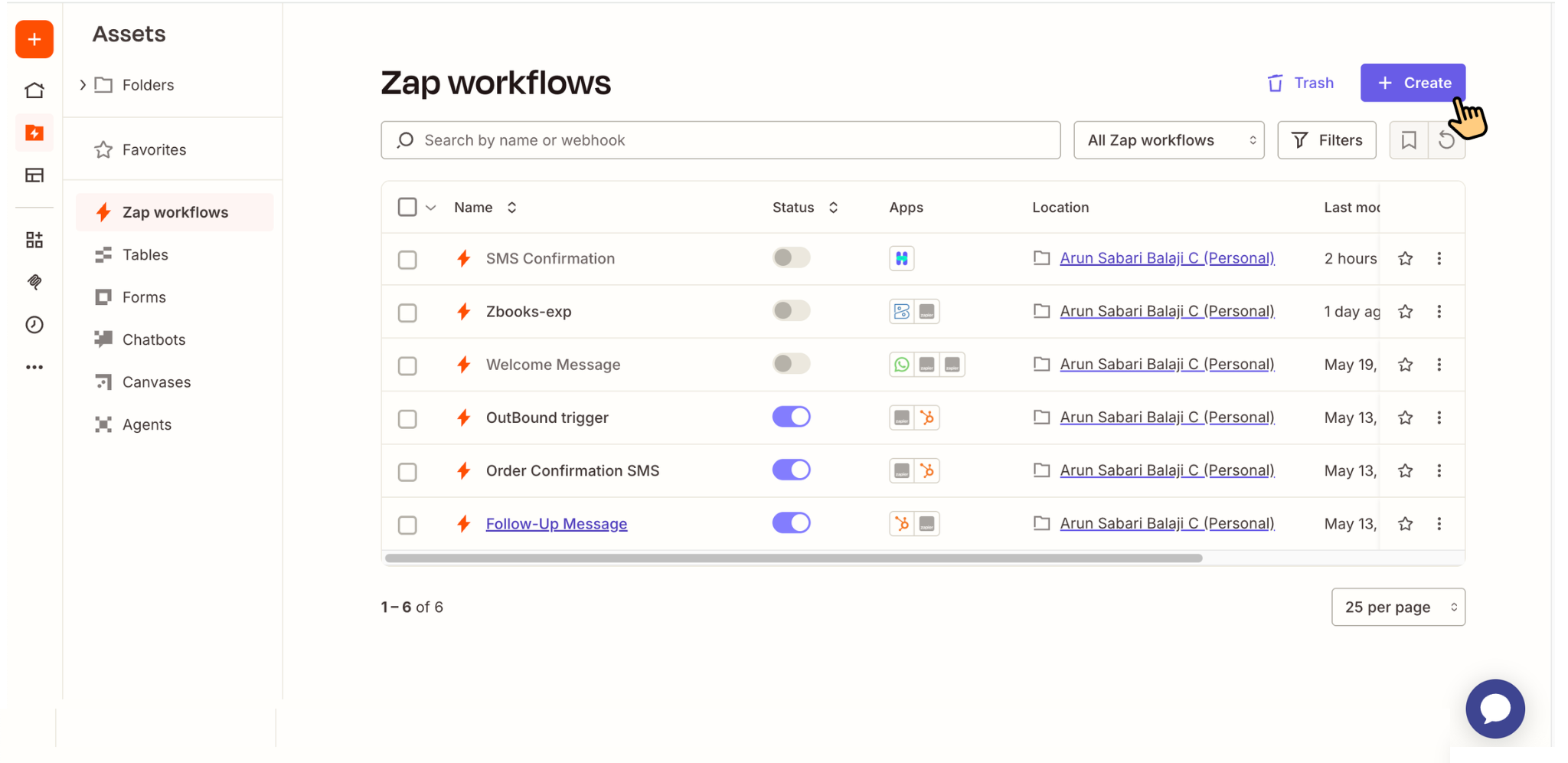
If authentication is successful, Zapier will display your connected HelloSend account and make it available for future workflows.

The connection only needs to be completed once. Future Zaps can reuse the same account connection without requiring another API key entry.

Available Triggers

Triggers are events that start an automation workflow. Whenever a specified event occurs within HelloSend, Zapier can automatically perform one or more actions.

HelloSend uses webhook-based triggers, which means events are delivered to Zapier in near real time. This provides faster automation compared to systems that rely on periodic polling.

New Inbound SMS

The New Inbound SMS trigger activates whenever a customer sends an SMS message to one of your HelloSend phone numbers.

This trigger is commonly used by businesses that want to automate support processes, lead management, customer engagement, or internal notifications.

Information Available

When the trigger fires, Zapier can access details such as:

  • Sender phone number
  • Recipient phone number
  • Message content
  • Message timestamp
  • Channel information

Common Use Cases

Businesses frequently use this trigger to:

  • Create support tickets automatically.
  • Send acknowledgment responses.
  • Notify account managers about customer inquiries.
  • Log conversations into CRM systems.
  • Route conversations to specific departments.

Because the trigger operates in real time, teams can react to customer messages quickly and consistently.

Outbound SMS Delivery Status

The Outbound SMS Delivery Status trigger activates when a message reaches a final delivery state.

Delivery outcomes may include:

  • Delivered
  • Failed

This trigger provides visibility into messaging performance and allows businesses to automate actions based on delivery success or failure.

Common Use Cases

Organizations commonly use this trigger to:

  • Update CRM records.
  • Generate delivery reports.
  • Notify teams when messages fail.
  • Trigger alternative communication channels.
  • Maintain compliance records.

By monitoring delivery outcomes automatically, businesses can quickly identify issues and improve communication reliability.

Available Actions

Actions are tasks that Zapier performs inside HelloSend after a trigger event occurs.

Send Message

The Send Message action allows Zapier to automatically send outbound communications through HelloSend.

Supported channels include:

  • SMS
  • WhatsApp Business
  • MMS
  • RCS

This action is one of the most commonly used features because it enables businesses to automate customer communication directly from events occurring in other applications.

Example Scenarios

A business may use the Send Message action to:

  • Confirm appointment bookings.
  • Send order confirmations.
  • Deliver shipping updates.
  • Notify customers about support requests.
  • Send payment reminders.
  • Deliver marketing follow-ups.

Configuration Options

When configuring the Send Message action, users can typically specify:

  • Sender Number
  • Recipient Number
  • Message Content
  • Template Selection

Best Practices

For the best results:

  • Use dynamic fields to personalize messages.
  • Verify recipient phone number formatting.
  • Use approved WhatsApp templates where required.
  • Select the correct sender number based on the communication channel.

Automated messaging helps businesses maintain consistent communication while significantly reducing manual effort.


Popular Automation Workflows

Automatically Reply to Incoming SMS Messages

Businesses often receive inquiries outside business hours or during busy periods. By combining the New Inbound SMS trigger with the Send Message action, HelloSend can automatically acknowledge customer messages.

This provides reassurance to customers that their message has been received while reducing uncertainty about response times.

Example Message

Thank you for contacting us.

We have received your message and a member of our team will respond as soon as possible.

Create Support Tickets from Customer Messages

Support teams can automatically convert inbound SMS messages into tickets within platforms such as Zendesk, Freshdesk, Zoho Desk, or HubSpot Service Hub.

This eliminates manual ticket creation and ensures every customer inquiry is tracked and assigned appropriately.

The customer's phone number, message content, and timestamp can be included automatically within the ticket.

Send SMS After Form Submissions

When a customer submits a form through platforms such as Typeform, JotForm, Gravity Forms, or Google Forms, Zapier can automatically trigger HelloSend to send a confirmation message.

This helps businesses acknowledge inquiries immediately and maintain engagement with new leads.

Send Order Confirmation Messages

E-commerce businesses can automatically send personalized order confirmation messages whenever a purchase is completed.

The message may include:

  • Customer name
  • Order number
  • Purchase confirmation
  • Delivery estimates

Providing immediate confirmation improves customer confidence and reduces support inquiries regarding order status.

Log Messages into Google Sheets

Organizations that require communication records can automatically store inbound SMS information in Google Sheets.

Each incoming message can create a new row containing:

  • Sender number
  • Recipient number
  • Timestamp
  • Message content

This creates an organized communication log for reporting, auditing, or compliance purposes.

Send Slack Notifications for Failed Deliveries

When an outbound message fails, Zapier can immediately notify a Slack channel.

This allows support teams to investigate delivery issues and follow up with customers using alternative communication methods.

Real-time alerts help reduce missed opportunities and improve communication reliability.

Send Post-Meeting Follow-Up Messages

Businesses can automate customer follow-up messages after meetings or appointments.

For example, after a Calendly booking or Google Calendar event is completed, HelloSend can automatically send:

  • Thank-you messages
  • Feedback requests
  • Survey links
  • Follow-up instructions

These automated touchpoints help maintain engagement and improve customer satisfaction.

Managing API Keys

Viewing Existing Keys

Navigate to Settings → API Keys to view all active API keys associated with your account.

The API key list includes:

  • Key Name
  • Created Time
  • Last used

For security reasons, full API key values are never displayed after creation.

Revoking API Keys

API keys can be revoked at any time.

Revoking a key immediately disables all integrations using that key.

To revoke a key:

  • Navigate to Settings → API Keys.
  • Click the three dots and select Delete.

If the integration is still required, create a replacement key and update the Zapier connection.

Troubleshooting

Unable to Connect HelloSend to Zapier

This issue is usually caused by an incorrect or expired API key.

Verify that:

  • The full API key was copied correctly.
  • The key has not been revoked.
  • The connection was saved successfully.

If necessary, create a new API key and reconnect the account.

Zap Is Not Triggering

If a Zap does not activate when expected:

  • Confirm the Zap is enabled.
  • Verify the HelloSend number is active.
  • Test the trigger configuration.
  • Re-publish the Zap.

These steps resolve most trigger-related issues.

Messages Are Not Being Delivered

If messages are not reaching recipients:

  • Verify phone number formatting.
  • Confirm the recipient has not opted out.
  • Review carrier restrictions.
  • Check Zapier task history for errors.

Using E.164 phone number formatting is strongly recommended.

Example:

+14155551234

Duplicate Messages

HelloSend includes duplicate protection mechanisms to prevent repeated sends caused by Zapier retries.

If duplicates still occur, investigate the upstream application that triggered the Zap. In many cases, duplicate form submissions or repeated trigger events are responsible.

Benefits of HelloSend + Zapier Integration

Automate Customer Communication

Businesses can eliminate repetitive communication tasks by automatically sending messages based on customer actions and business events. This improves consistency and ensures important communications are never forgotten.

Connect Over 7,000 Applications

Zapier enables HelloSend to work alongside thousands of popular applications. This allows organizations to build connected workflows without requiring custom development.

Improve Response Times

Automated workflows allow businesses to respond instantly to customer inquiries, form submissions, purchases, and support requests, creating a better customer experience.

Reduce Manual Work

Automation reduces the need for repetitive tasks such as sending confirmations, updating records, and notifying team members.

Increase Team Productivity

Teams can focus on high-value activities while Zapier handles routine communication and administrative tasks automatically.

Deliver Personalized Experiences

By using dynamic fields and templates, businesses can send highly personalized messages while maintaining consistency and professionalism.

Scale Communication Effortlessly

Whether sending ten messages per day or thousands per month, automated workflows allow organizations to scale customer communication efficiently.

No Coding Required

Zapier's visual workflow builder enables users to create sophisticated automations without technical expertise, making automation accessible to teams of all sizes.

Conclusion

The HelloSend + Zapier integration provides a powerful way to automate customer communication and connect messaging workflows with the tools your business already uses. By combining HelloSend's SMS, WhatsApp, MMS, and RCS capabilities with Zapier's no-code automation platform, organizations can streamline operations, improve response times, and create more engaging customer experiences.

Whether you are managing sales leads, customer support inquiries, appointment scheduling, e-commerce orders, or internal team notifications, HelloSend and Zapier work together to eliminate manual processes and create efficient, scalable workflows. With support for thousands of applications and flexible automation options, businesses can build customized communication journeys that save time, improve productivity, and drive better customer outcomes.

Need help? Reach out to assist@hellosend.com